

DJI Lito 1 First-Flight Checklist: Linking, Activation and Camera Setup

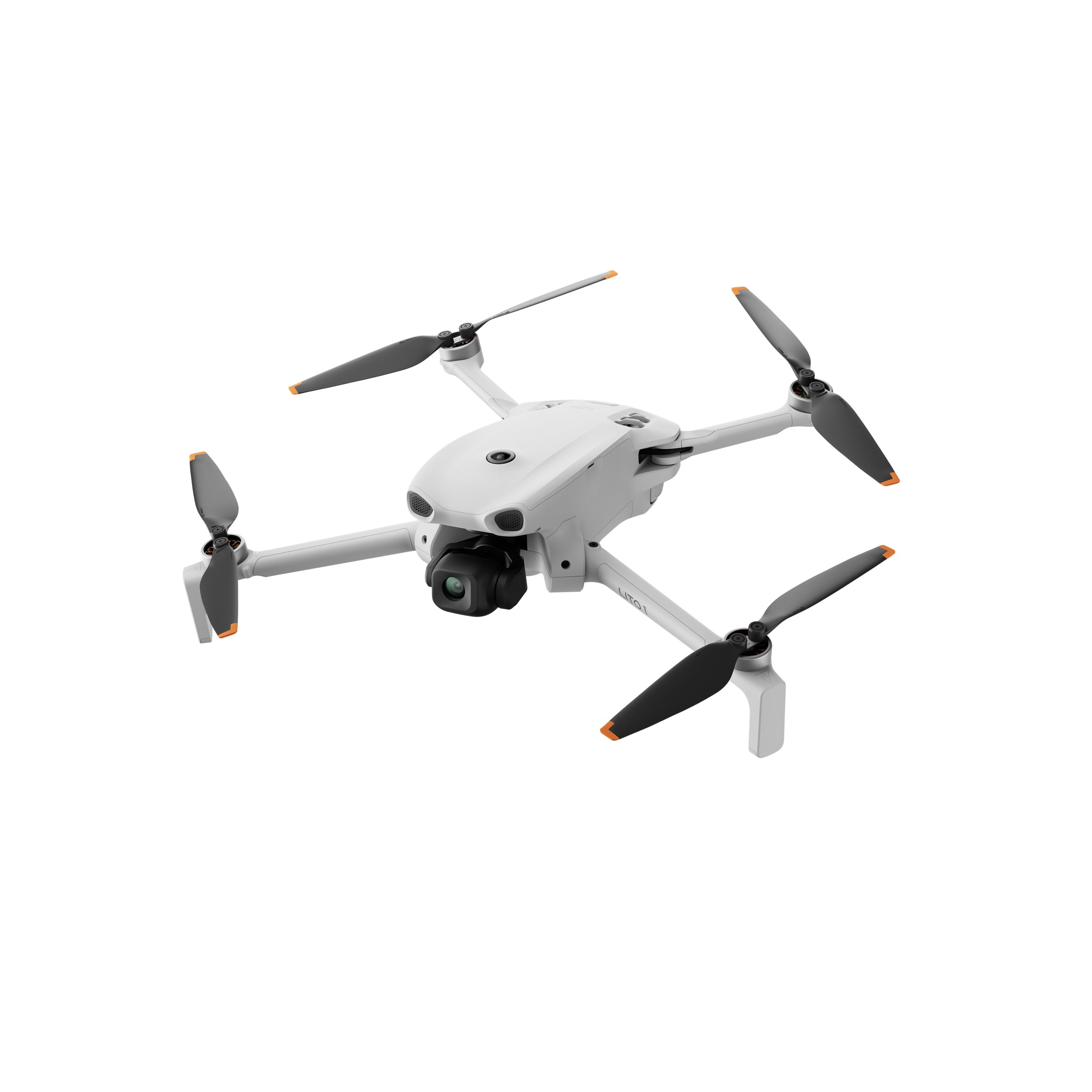
You unbox a DJI Lito 1, connect your phone and remote, but the aircraft appears to power itself on when an arm is unfolded—or the app says the remote is not linked. Neither symptom necessarily means defective hardware. DJI has a specific automatic arm-unfold power-on option, a first-use internet activation process and a defined DJI Fly linking procedure for this model. A careful first flight avoids misdiagnosing those normal behaviours and prevents the common mistake of flying before the Return-to-Home and obstacle settings are understood.
Before powering on: five Lito 1 checks
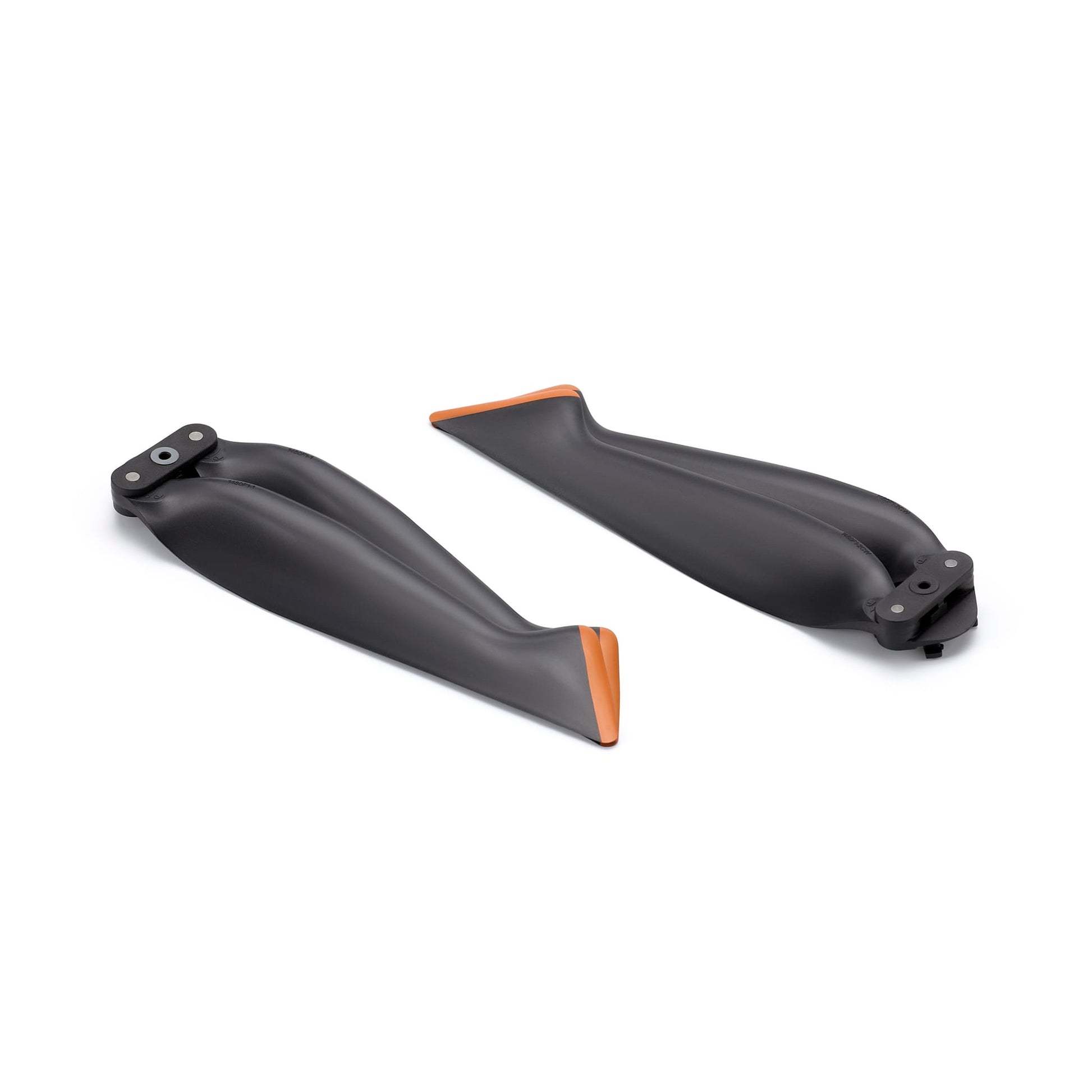
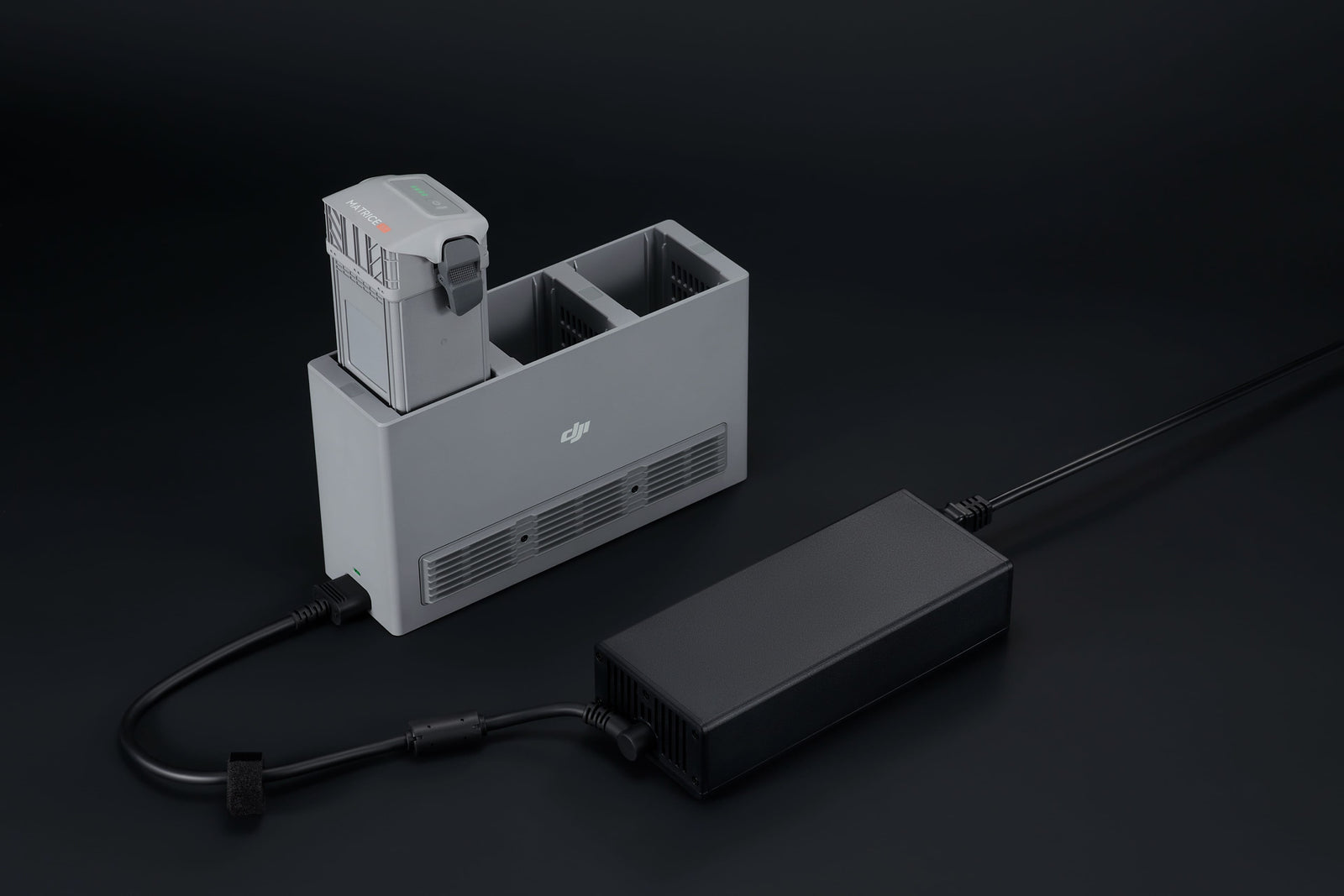
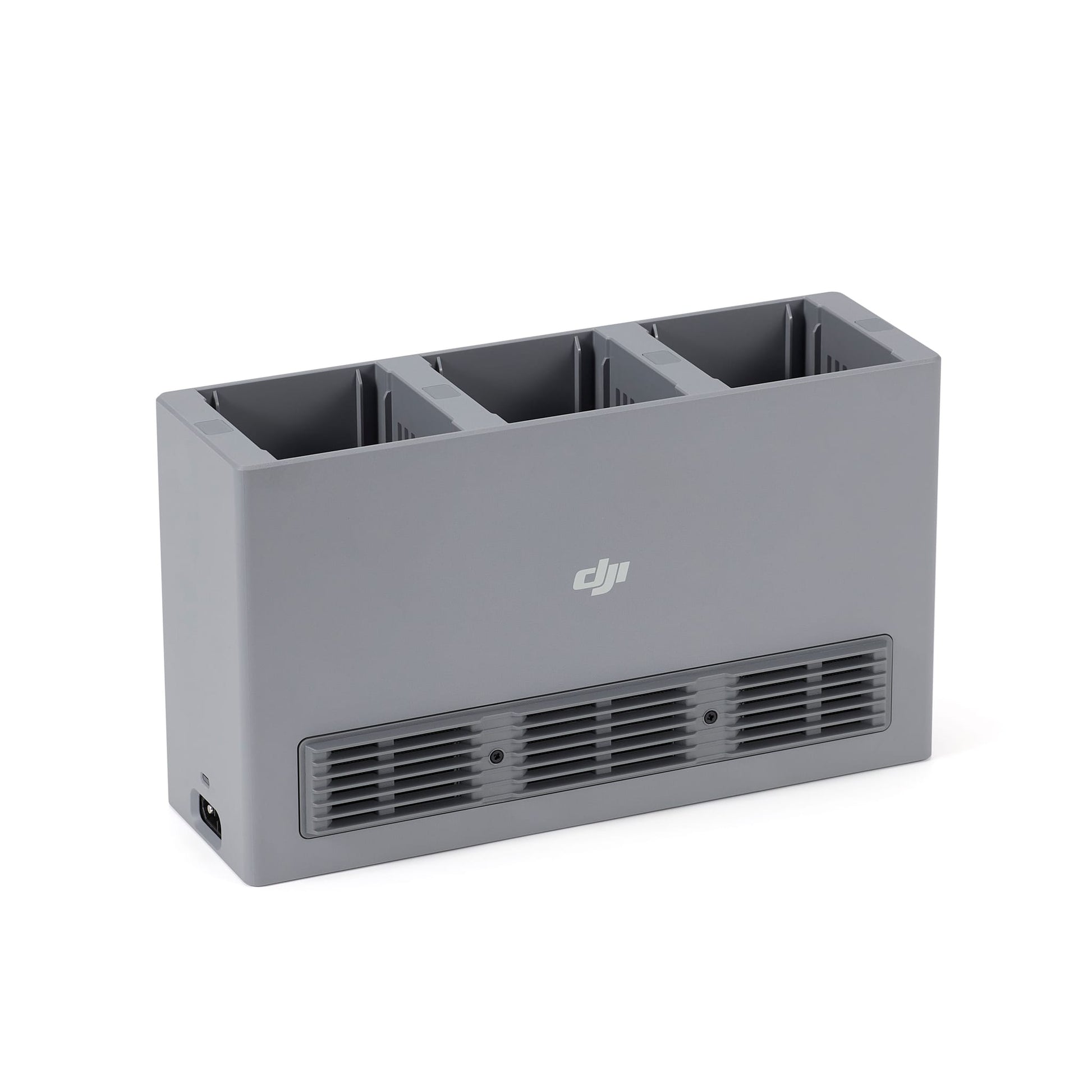
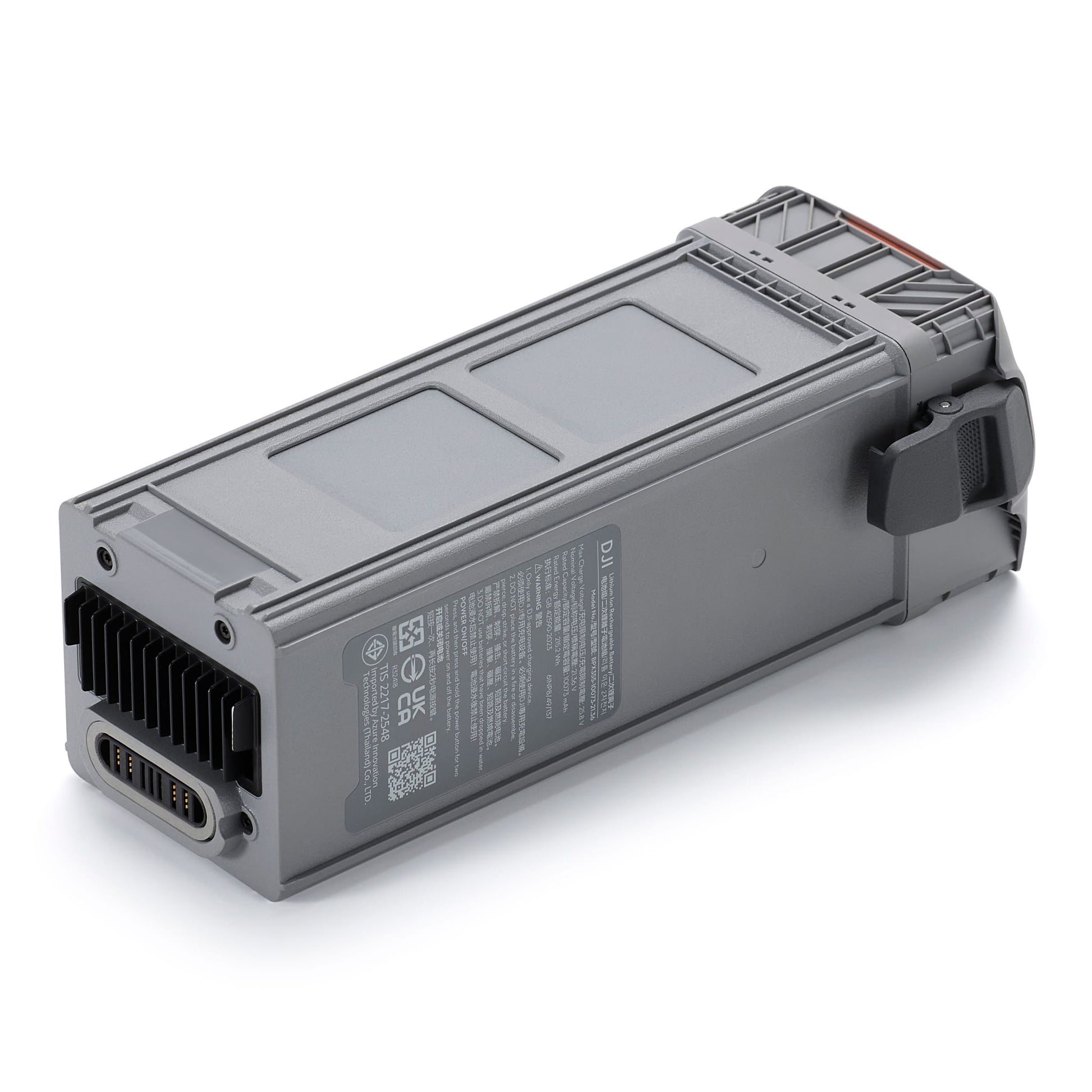
Inspect the original DJI Lito 1 body, gimbal, propellers, battery and controller. Remove the gimbal protector before any powered self-test; leaving it installed can interfere with gimbal movement and cause a warning. Examine each propeller for visible damage and confirm that the approved battery is fully seated. Use the manufacturer-supported USB-C charging setup or matching battery hub and observe the charger status before flight. DJI specifies that charging is not supported while the aircraft is powered on.
Why the drone powers on when you unfold an arm
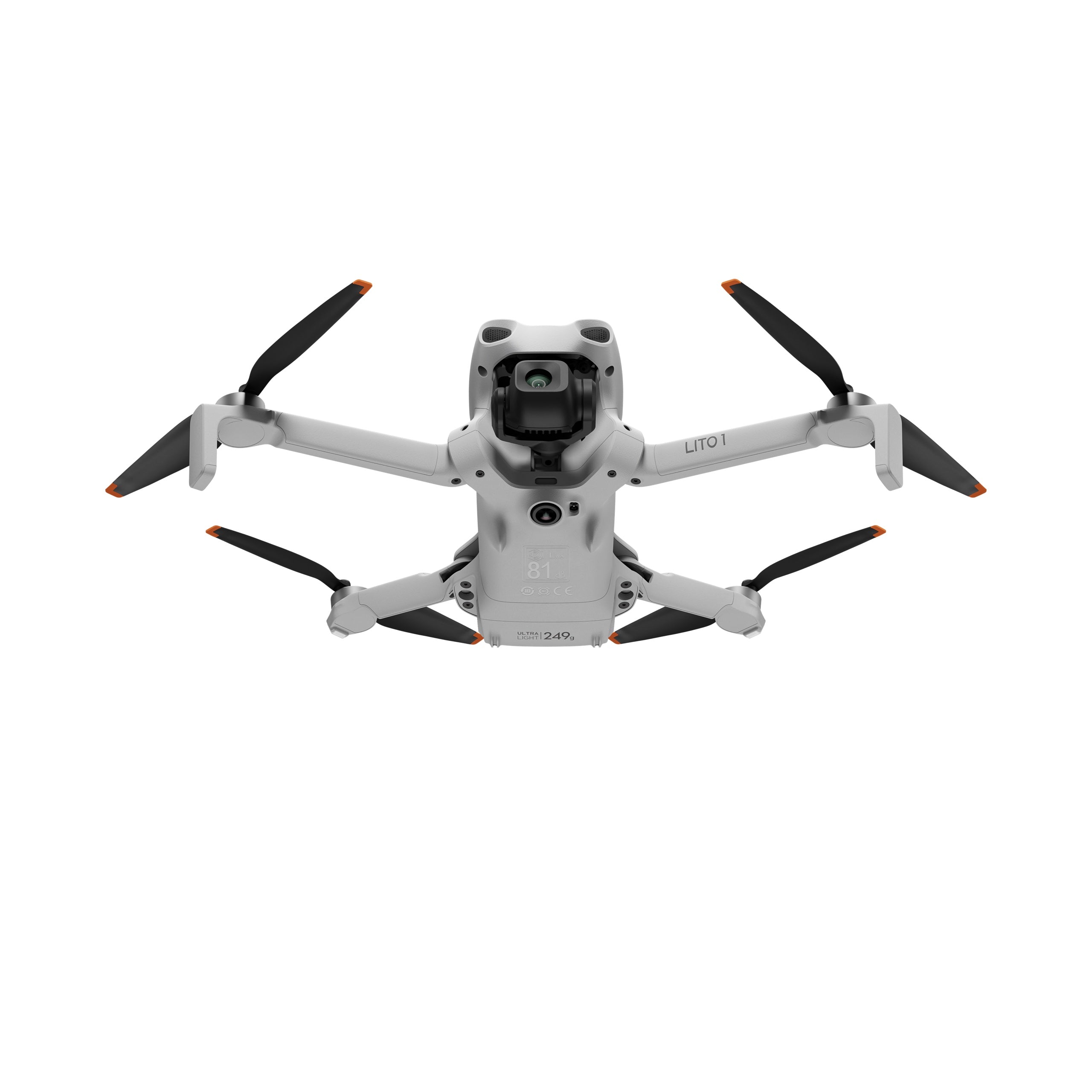
DJI enables Unfold Arm to Power On by default. Unfolding the right rear arm can therefore start the aircraft automatically. That is intended behaviour, not a stuck power key. To control it manually, DJI supports a short press followed by a press-and-hold of the aircraft button for approximately two seconds. The companion Fold Arm to Power Off option is disabled by default. These settings can be changed in DJI Fly; never assume folding the aircraft always turns off the motors or power.
RC-N3, RC 2 and RC-N2: confirm the remote you actually own
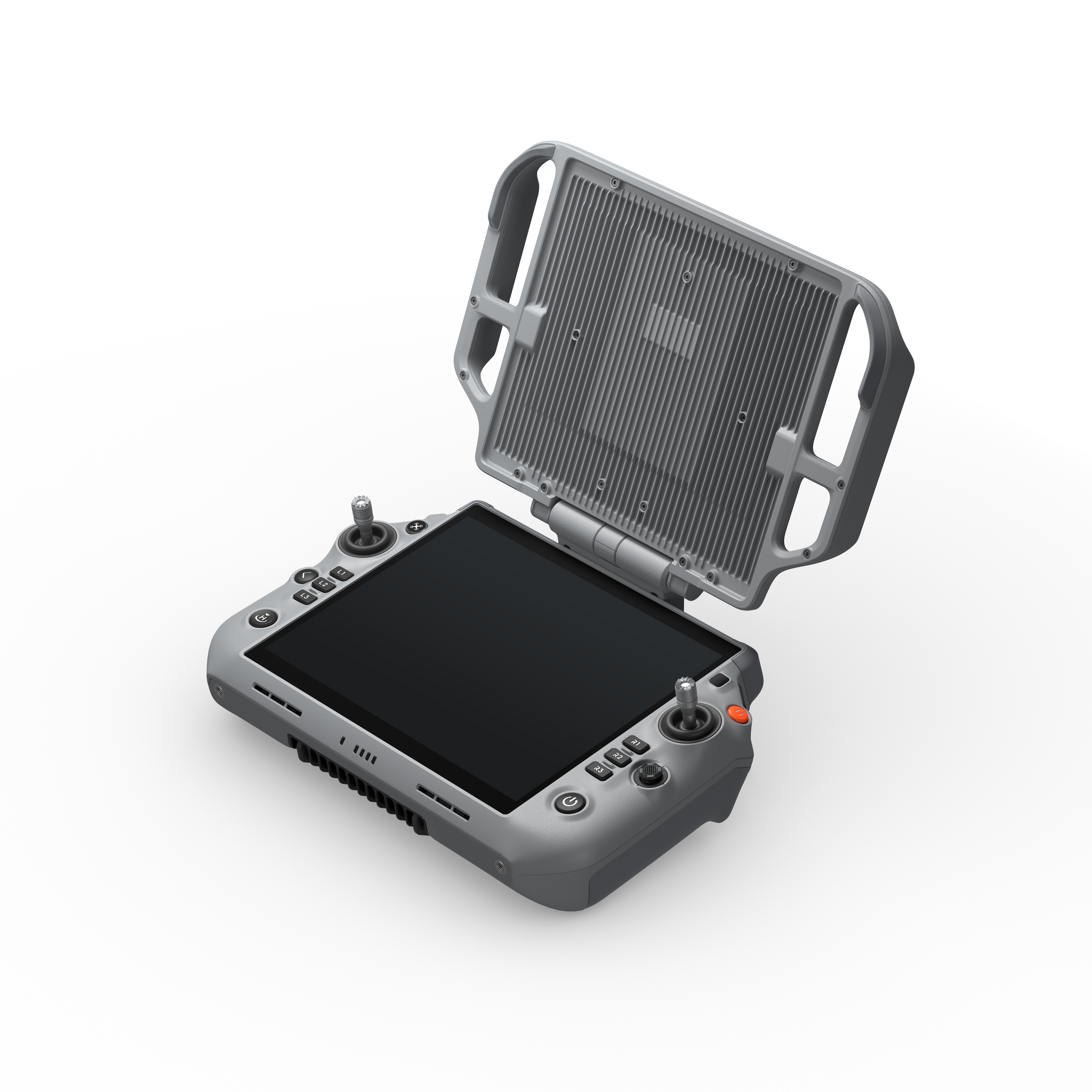
DJI lists RC-N3, RC 2 and RC-N2 as supported remote controllers for Lito 1. The RC-N3 and RC-N2 phone-based controllers rely on DJI Fly running on a compatible mobile device. RC 2 includes the DJI Fly app on its own display. The consumer RC Pro Enterprise or an FPV ELRS transmitter is not a supported substitute solely because another DJI aircraft accepts it.
| What you see | More likely explanation | Correct next step |
|---|---|---|
| DJI Fly asks for the internet on first use | Aircraft/controller activation not finished | Connect the supported remote or phone to the internet and follow official activation steps |
| RC-N3 connected to phone but DJI Fly sees no remote | Cable/USB selection or phone permission issue | Confirm the correct cable; on Android try DJI’s documented charge-only USB prompt |
| Remote is on but aircraft not linked | Linking incomplete or controller from another package | Use DJI Fly Control → Connect to Aircraft and the supported pairing sequence |
| Aircraft starts when right-rear arm unfolds | Default automatic power-on feature | Recognise normal function; change it only using DJI Fly if desired |
| Gimbal moves against its transport cover | Gimbal protector still fitted | Power off and remove cover; inspect for damage before restarting |
| Obstacle avoidance unavailable in Sport mode | DJI intentionally disables it in S mode | Change to an appropriate mode and plan clear space; do not use Sport for first-flight obstacle testing |
Activate Lito 1 without repeatedly resetting it
- Prepare the remote. For RC-N3, attach the supported phone cable and run the latest official DJI Fly app. For RC 2, connect the controller to Wi-Fi or an approved hotspot to complete any required first-use activation.
- Power on the aircraft and remote. Complete the normal gimbal-protector and battery checks first.
- Open DJI Fly. The first activation requires an internet connection. Follow the prompts; the aircraft becomes bound to the remote used during activation according to DJI.
- If linking was lost: in camera view go to Control → Connect to Aircraft. DJI says hold the aircraft power button more than four seconds to enter the linking state, then complete the app sequence. Do not treat the two-second normal power-on hold as the linking command.
- Record the warning if it still fails. Check controller model, firmware, cable, phone permissions and whether a second aircraft/controller is active nearby before ordering replacement hardware.
Firmware: fix connection issues without creating a second problem
DJI Fly prompts for compatible aircraft and controller firmware. Complete the supported update with sufficient battery power, a stable network and the correct model-specific release. DJI says firmware updates may fail when aircraft/controller charge is below 20%, the network drops, a device is powered off during updating or the phone changes to another app. The aircraft may restart repeatedly and power itself off when finished; do not interrupt the update merely because it briefly appears disconnected.
If an update still fails, use the official compatible DJI Assistant 2 (Consumer Drones Series) for the actual Lito model rather than an unrelated Enterprise or FPV Assistant 2 edition. See our DJI firmware recovery checklist for broader diagnostic principles.
RTH and obstacle avoidance are part of the first-flight setup
In DJI Fly, open the Safety settings, check Obstacle Avoidance Action (such as Brake or Bypass where available) and set a Return-to-Home altitude appropriate for the local obstacles and rules. This altitude is not a substitute for a safe takeoff point and planned return route. Confirm an appropriate home point, GNSS and positioning status before leaving the immediate safe area. DJI states that Sport mode disables obstacle avoidance automatically, so first-flight testing should not depend on sensing while the aircraft is in that mode.
Obstacle sensing has limits around glass, thin cables, low-texture surfaces and poor illumination. Even a properly activated drone is not guaranteed to avoid every object. Consult our DJI obstacle-sensing limits guide if your planned route passes buildings, branches or wires.
Start with a short controlled camera test
DJI Lito 1 supports standard recording up to 4K/60fps, with 4K/100fps available in a slow-motion mode on supported settings. Make a short daylight recording, verify exposure and gimbal level, and review the original file from the actual recording medium before experimenting with automated tracking or fast moves. A low-quality phone preview is not proof that the master camera file is blurred. If footage looks soft only after export, compare the source resolution and output settings rather than immediately recalibrating the camera.
Special note for EU/UK Battery Plus purchases
DJI describes Lito 1 as a C0-certified aircraft in the EU when configured as specified. Its official store FAQ says the Lito Series Intelligent Flight Battery Plus is not supported for Lito 1 in the EU or UK. Do not assume that a physically fitting larger pack is legal or approved merely because an international store page advertises longer endurance. Use the correct standard Lito 1 Intelligent Flight Battery and follow the applicable local rules.
Official first-flight instructions and related hardware
The DJI Beginner’s Guide to Lito X1 and Lito 1 documents arm-unfold power-on, activation, pairing, DJI Fly settings and safe first-flight steps. Check DJI’s technical specifications for camera, battery and controller support. The original DJI Lito 1 and genuine spare components are listed at FalconFly. A deliberate first-flight checklist is more useful than an impulsive firmware reset.