

DJI Drone Firmware Update Failed or Stuck? Recovery Checklist

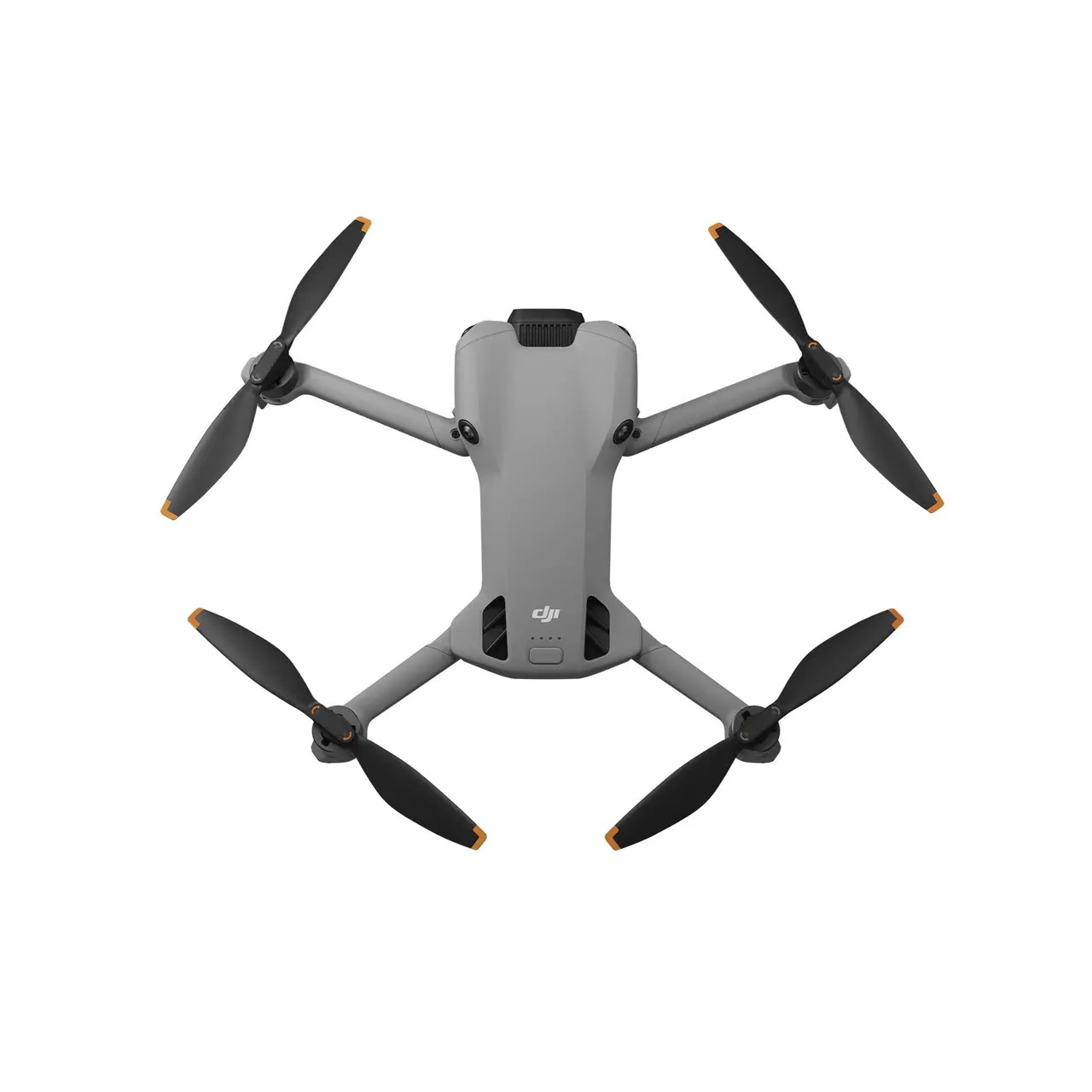
A firmware progress bar that appears stuck can make a DJI owner worry that the aircraft is permanently damaged. Many failures instead come from low battery level, interrupted data transfer, an unstable download or a mismatch between the update software and the exact model. The safest approach is to identify the stage where the process failed and use DJI’s documented recovery methods. Do not unplug a unit just because the progress percentage temporarily stops changing.
Prepare power and environment before updating
DJI support recommends ensuring the aircraft and remote controller batteries are above 50 percent for firmware updates. Use a stable network connection and sufficient storage on the mobile device or computer. Place the aircraft on a ventilated surface with the gimbal free from obstruction. Do not start an update immediately before a paid flight or while the aircraft is too hot to operate safely.
Know what a normal restart looks like
An aircraft, camera or controller may reboot during an update, and progress percentages can move unevenly. Follow the product-specific app guidance and avoid operating the controls or disconnecting cables mid-process. If the official software explicitly reports failure, save the error text and identify whether the aircraft, remote, goggles or individual battery was being updated. Different components can have separate firmware packages.
Use the correct recovery route
If a mobile update repeatedly fails, DJI documents using the appropriate DJI Assistant 2 version for the exact product on a computer. DJI Assistant 2 has multiple editions, so choosing the wrong download can leave your model unsupported. Connect using a known-good data cable and a stable USB port, log in as directed, select the detected device and use the offered update or refresh action where available.
Do not treat a battery mismatch as a firmware brick
Some DJI battery and aircraft combinations request further updates after the main aircraft firmware is current. Insert compatible batteries individually as directed by the application and ensure sufficient charge. Do not flash third-party firmware, bypass identity checks or use instructions intended for a different aircraft generation. Persistent device-not-detected failures can indicate a cable or port problem rather than corruption.
Post-update functional verification
After an apparently successful update, check all device versions and any new settings that require review. Confirm controller linking, camera movement, navigation warnings, battery status and flight restrictions before returning to operation. Conduct a short authorized test rather than immediately resuming an important shoot. If the failure recurs, keep screenshots and contact DJI support or a qualified repair provider.
At-a-glance diagnostic comparison
| App update aborts during download | Network, storage, mobile compatibility |
| Battery-related interruption | Charge aircraft/controller above recommended level |
| Repeated app update failure | Model-specific DJI Assistant 2 |
| Device not detected on computer | Data cable, USB port, Assistant edition |
| Mechanical or gimbal error after update | Inspect hardware and use official diagnostics |
Practical checklist
- Record exact model and update error
- Charge the aircraft and controller
- Avoid interrupting in-progress restart
- Try manufacturer-supported Assistant 2 if app attempts fail
- Verify linking and safety settings after completion
Frequently asked questions
Should I pull the battery when the progress bar freezes?
Do not interrupt an active update casually. Follow DJI’s official failure procedure and error guidance.
Does every DJI drone use the same Assistant 2 app?
No. Download the edition listed for your particular device.
Further reading and equipment
Technical references: DJI official firmware-update failure guidance · DJI updating aircraft firmware. Always verify the exact hardware and firmware version.