

DJI RC Pro Enterprise: Why the Controller Can Have Video but No Mission Control

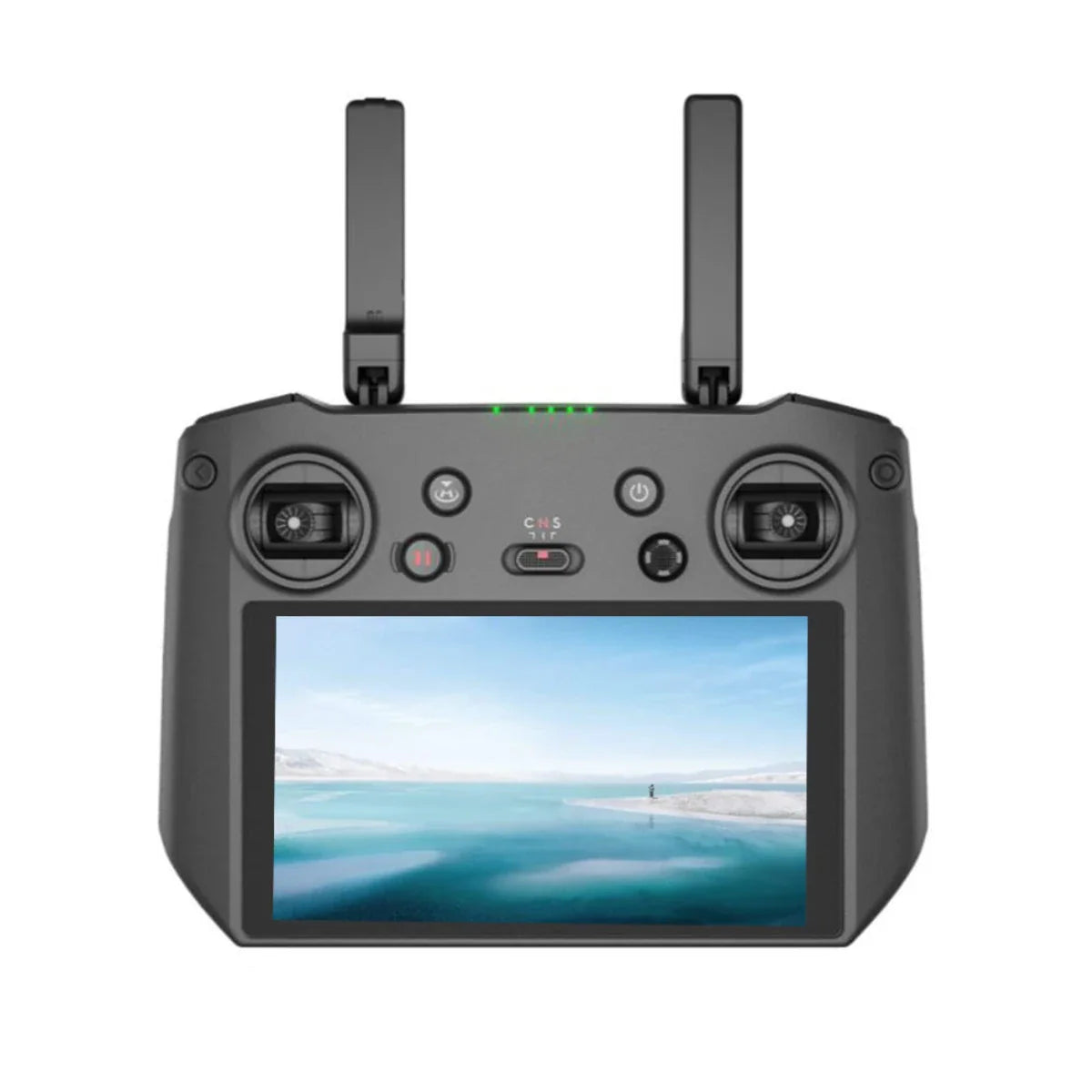
An RC Pro Enterprise successfully displays the Mavic 3E camera feed, but the mapping-route button is greyed out, planned missions cannot be loaded or DJI Pilot 2 cannot control a particular payload. Seeing video is a good sign—but it proves only that one part of the transmission chain works. Aircraft linking, live video, flight-control commands, DJI Pilot 2 mission functions and optional payload control are distinct layers. Troubleshoot the specific missing function before resetting a controller that is otherwise linked correctly.
RC Pro Enterprise is not the consumer DJI RC Pro
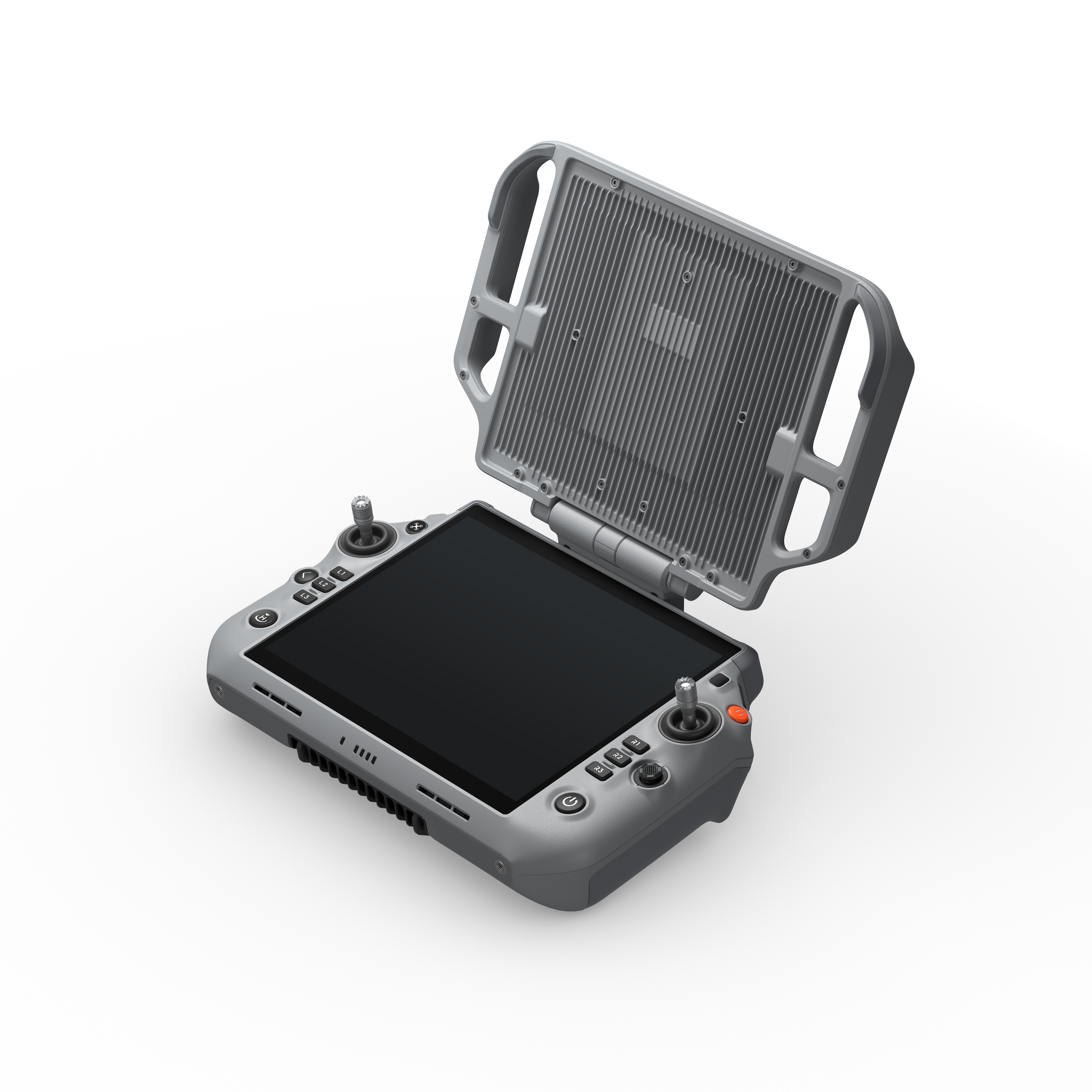
The DJI RC Pro Enterprise Controller is the intended remote for DJI’s Mavic 3 Enterprise ecosystem. It uses O3 Enterprise transmission with four antennas, has a 5.5-inch 1,000-nit display and an integrated DJI Pilot 2 workflow. DJI publishes around three hours of controller operating time and supports compatible charging via the approved DJI USB-C adapter. The consumer DJI RC Pro, DJI RC or DJI RC 2 are not automatic substitutes simply because the cases look similar.
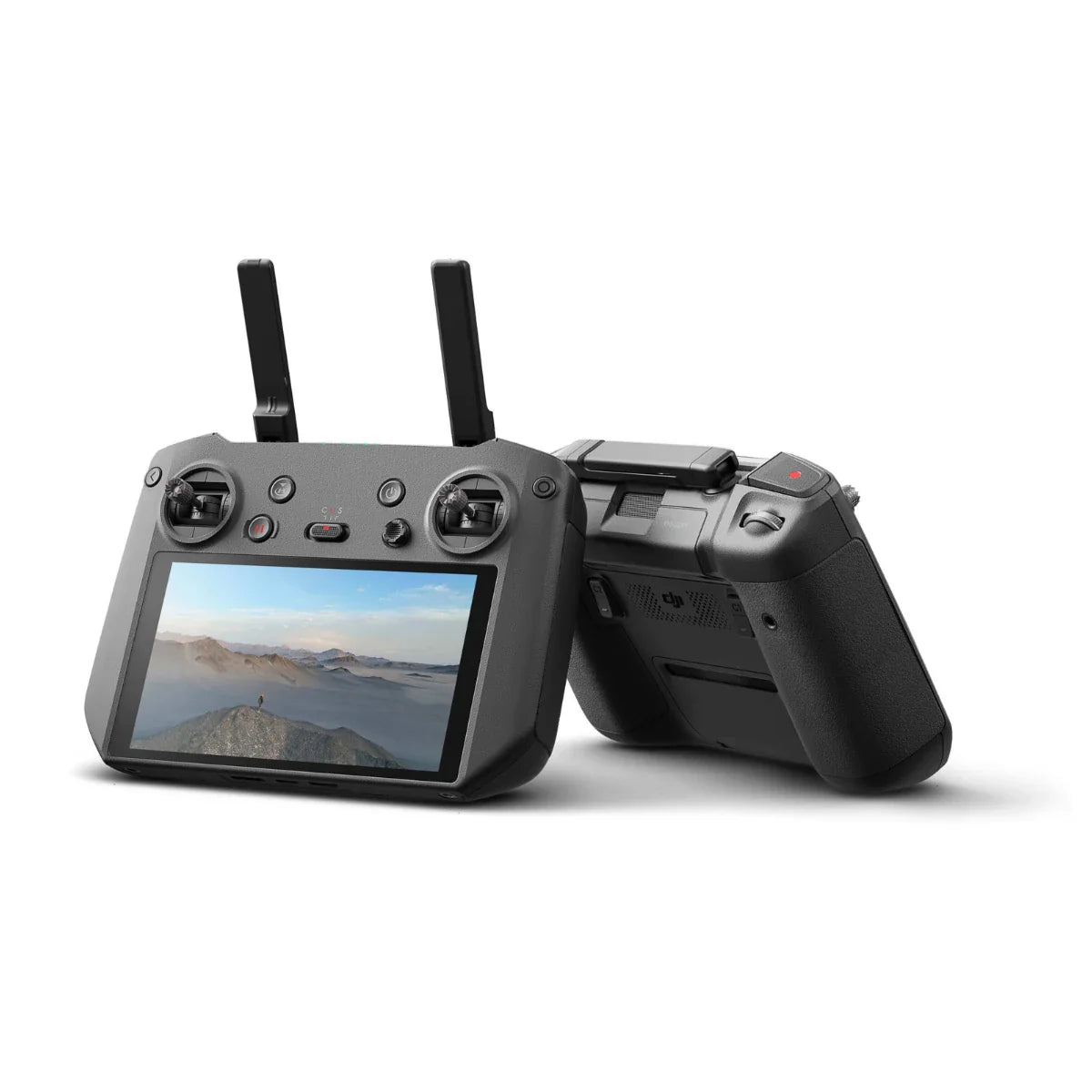
DJI’s Mavic 3 Enterprise FAQ says ordinary Mavic 3 consumer remote controllers are not supported by the Enterprise aircraft family. That distinction matters when buying used hardware or borrowing a remote from another DJI drone fleet. A “works with Mavic 3” label alone is not precise enough.
Why video alone is an incomplete link test
| What works | What fails | First checks |
|---|---|---|
| Camera image on Pilot 2 | Waypoint or mapping mission cannot start | Aircraft model, Pilot 2 mission mode, firmware and route permissions |
| Video plus basic stick control | Optional RTK or speaker not recognized | PSDK accessory connection, supported payload combination and firmware |
| Onboard mission works | Cloud sync or FlightHub feature unavailable | Controller network connection, account access and enabled cloud service |
| DJI Pilot 2 works | Third-party mission app cannot connect | App version, Mobile SDK support and competing app access |
| Live video works | Map imagery is blank | Offline map download, network availability and map settings |
| Remote is paired | Wrong camera or mission capability shown | Actual Mavic 3E/M3T hardware and selected payload mode |
Pilot 2 flight features depend on the camera actually installed
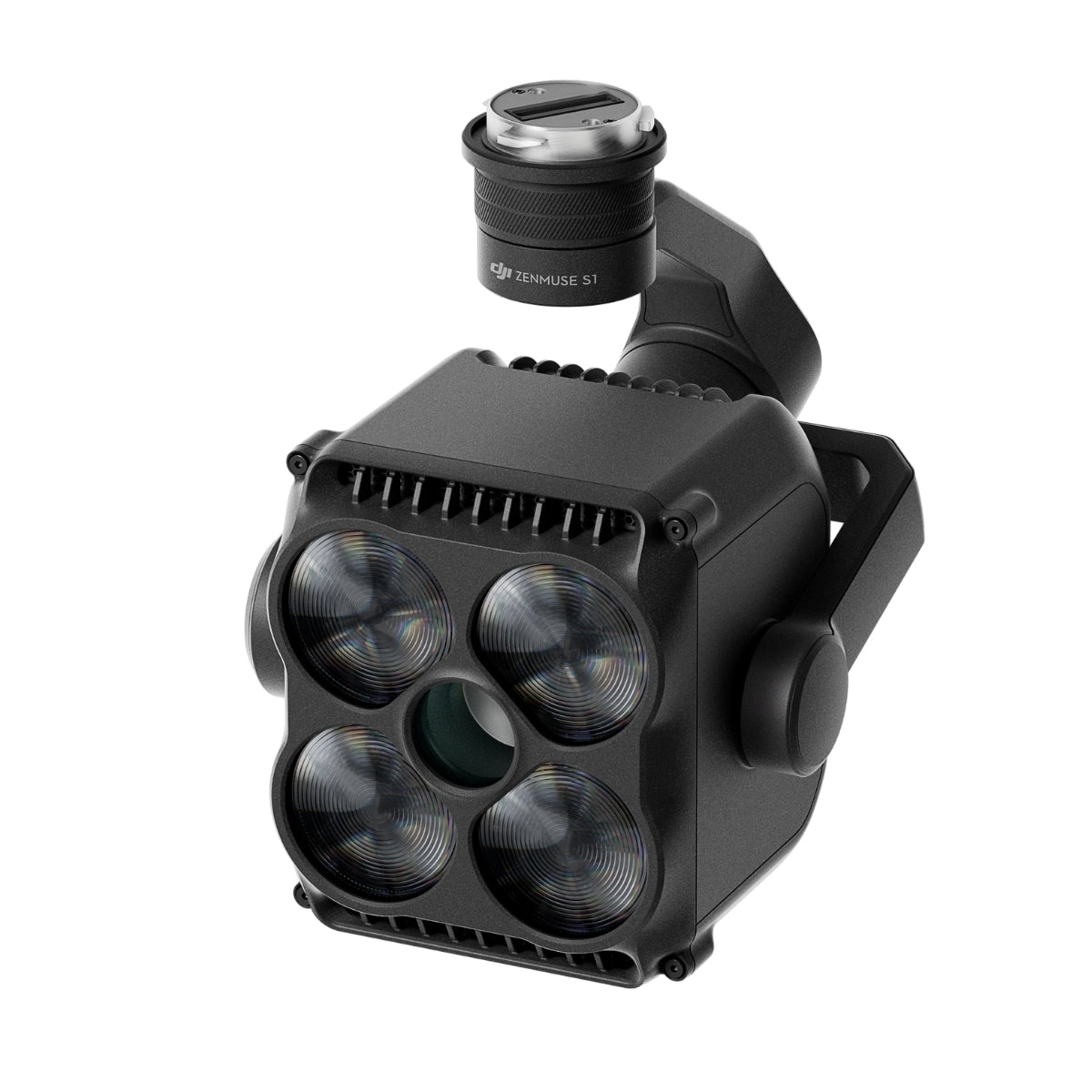
The Mavic 3E uses a 4/3 CMOS wide-angle mechanical-shutter camera for its DJI mapping workflow, plus a separate telephoto camera. Mavic 3T has a 1/2-inch wide camera, tele camera and thermal sensor. DJI explicitly says that the M3E telephoto camera does not support surveying without GCPs, whereas the wide camera supports the specified survey mode. A missing mission capability therefore may be an aircraft/camera limitation rather than a controller communication fault.
If a Pilot 2 mode does not appear in a thermal model exactly as it does in an M3E mapping demonstration, check the supported function matrix. Do not attempt to activate a feature by flashing an unrelated aircraft model’s firmware or installing an unofficial controller app.
A third-party app can interfere with Pilot 2 access
Professional Mavic 3 Enterprise workflows may use apps built on DJI’s Mobile SDK, but those apps do not inherit every DJI Pilot 2 feature. Some need different permissions or explicitly require DJI Pilot 2 to be stopped before taking control. If a third-party app shows video but cannot execute its own mission, verify the app vendor’s exact M3E/M3T support, permission requirements, approved SDK release and controller configuration.
Do not treat an app written for a consumer DJI Mini or Mavic model as compatible with the RC Pro Enterprise. Also avoid installing modified APK files from unverified mirrors. Use original manufacturer or authorised app-distribution sources and keep a tested backup of the required aircraft and controller settings.
Controller update, aircraft update and Pilot 2 version must be compatible
DJI publishes separate offline firmware packages for Mavic 3 Enterprise aircraft and the RC Pro Enterprise controller through its official download centre. An aircraft can continue showing a picture while an application layer exposes incompatibilities after an incomplete update. If a function disappeared after servicing, note the aircraft build, remote build, Pilot 2 version and any PSDK payload build before making changes.
Carry out a manufacturer-supported update sequence using the matching releases. Do not downgrade firmware blindly in hopes of restoring a greyed-out button; compatibility and regional licensing restrictions can make that worse. If mission data are valuable, export or back up the routes and local records through supported methods before changing the controller software.
Seven-step diagnosis on the ground
- Confirm the controller model. It must be the supported RC Pro Enterprise version, not a consumer RC Pro/RC 2 or a lookalike unit.
- Identify the actual aircraft. Read M3E, M3T or relevant approved variant and the camera/payload installed. Confirm the missing function is supported on that exact aircraft.
- Separate the link layers. With propellers safely prevented from operating, verify aircraft recognition, basic remote stick response and camera control independently of the mission interface.
- Inspect the Pilot 2 warning. Record which exact mode, button or mission action is unavailable and whether the error names a missing setting, location source or permission.
- Check aircraft/controller/app versions. Compare the actual releases with DJI’s official compatibility information. Do not mix software intended for other drone families.
- For cloud features, verify network and account. Test controller internet and the proper FlightHub/cloud permissions; a working aircraft radio link alone does not provide internet.
- Isolate third-party apps. Stop unsupported competing flight apps using the app vendor’s documented method and retest the native Pilot 2 workflow before changing hardware.
When a controller swap is justified
A different remote is worth testing if the original cannot establish a proper link, consistently loses hardware buttons or shows repeatable input faults across verified supported aircraft. If the remote transmits control and video but one optional planning feature is unavailable on a particular aircraft or firmware combination, first investigate the feature matrix and software. Replacing an expensive controller is unlikely to unlock a mission type that DJI does not support on the connected camera.
Use a safe controlled environment for any comparison. Verify stick calibration, aircraft status and safe RTH settings before operational use. Controller diagnosis must not rely on a flight conducted with unverified control channels or warning states.
Sources and supported hardware
DJI lists RC Pro Enterprise’s specifications and supported enterprise aircraft in the Mavic 3 Enterprise specifications, with controller and camera restrictions in the official FAQ. Get supported RC and Pilot 2 packages from DJI’s original downloads page. Compare the actual controller hardware on the FalconFly RC Pro Enterprise listing.