


DJI QuickTransfer Won’t Connect? Diagnose Wi-Fi, Bluetooth and iPhone Permissions

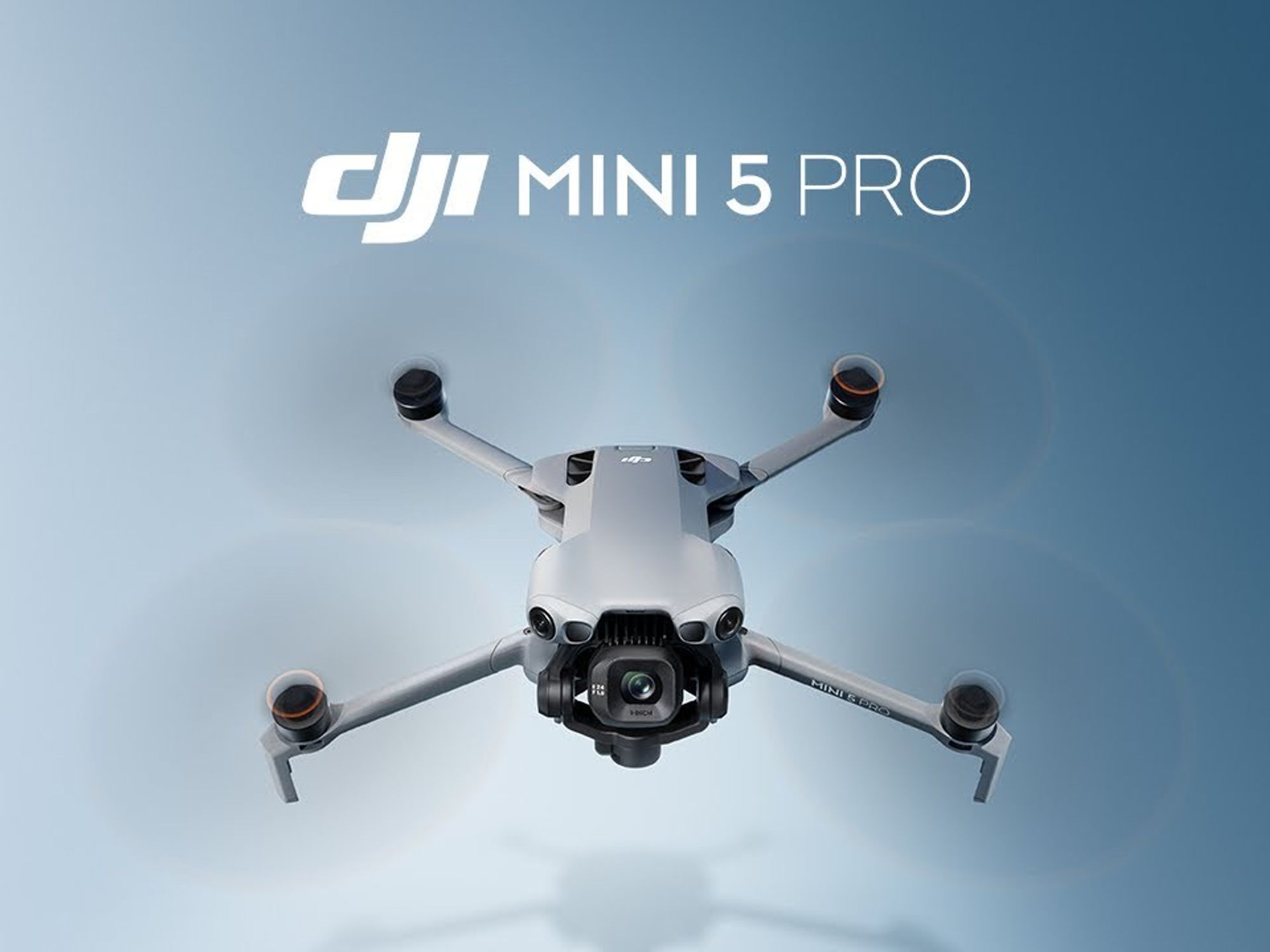
The aircraft records normally and the remote controller works, yet DJI Fly refuses to connect your phone for QuickTransfer. Some users keep trying the controller’s USB cable because they assume the aircraft must first reconnect to the radio. QuickTransfer follows a separate phone-to-aircraft connection path, and that distinction matters. DJI’s official troubleshooting document identifies phone permissions, the drone’s wireless network, supported band combinations, stored Wi-Fi credentials and interruptions while copying media as separate failure points. Before reinstalling everything, identify exactly which stage fails.
- Before troubleshooting, establish which connection is failing
- iPhone checklist: Local Network, remembered Wi-Fi and interference
- Android checklist: permissions and the 5.8GHz compatibility trap
- When downloads start but fail halfway
- A decision table you can use at the hotel desk
- When to stop experimenting
Before troubleshooting, establish which connection is failing
There are three different links in a typical DJI filming workflow: aircraft to flight controller, controller to mobile device on controller-dependent setups, and aircraft directly to phone for QuickTransfer. They are not interchangeable. An aircraft that flies correctly can still refuse a QuickTransfer session. If the phone sees the aircraft in the app but never joins its Wi-Fi network, investigate network permissions and the connection stage; if the Wi-Fi joins but a file stops halfway, inspect storage, power and media condition instead. DJI lists supported aircraft models individually. Confirm that the exact model and app version support QuickTransfer before hunting for a hidden button.
Keep aircraft motors off during this diagnosis and perform it somewhere with room for the unit to remain powered and ventilated. An active download is not a reason to operate propellers.
iPhone checklist: Local Network, remembered Wi-Fi and interference
DJI specifically recommends verifying that the DJI Fly app can access the iOS Local Network. Also check Bluetooth and Wi-Fi status, update the app by its official distribution channel, and ensure another phone has not already connected to the aircraft. A saved aircraft Wi-Fi connection can become stale after changes to the network name or device state. DJI recommends forgetting that aircraft network and reconnecting, then restarting the aircraft when necessary. Do not erase all phone network settings as a first response; that resets unrelated Wi-Fi and VPN configurations without proving the drone was at fault.
Cellular-data handling can sometimes affect an interrupted transfer; DJI lists disabling cellular data or using airplane mode as a later diagnostic for downloads. Follow instructions carefully so the phone’s Wi-Fi and Bluetooth state remain appropriate for the connection.
Android checklist: permissions and the 5.8GHz compatibility trap
On Android, DJI asks users to enable Wi-Fi, Bluetooth and positioning functions and confirm any separately managed Wi-Fi permission for DJI Fly. Some phones do not support the precise 5.8GHz channels used by the aircraft. On supported app configurations, DJI documents a Fixed 2.4GHz QuickTransfer band option. If this changes the result, it points toward a wireless-band compatibility issue rather than a failed camera or memory card. Not every phone shows this menu; do not claim a missing option is an app defect.
Keep the aircraft and phone near one another without placing either on conductive or heat-trapping surfaces. Avoid connecting the phone simultaneously to several competing wireless devices during a diagnostic session.
When downloads start but fail halfway
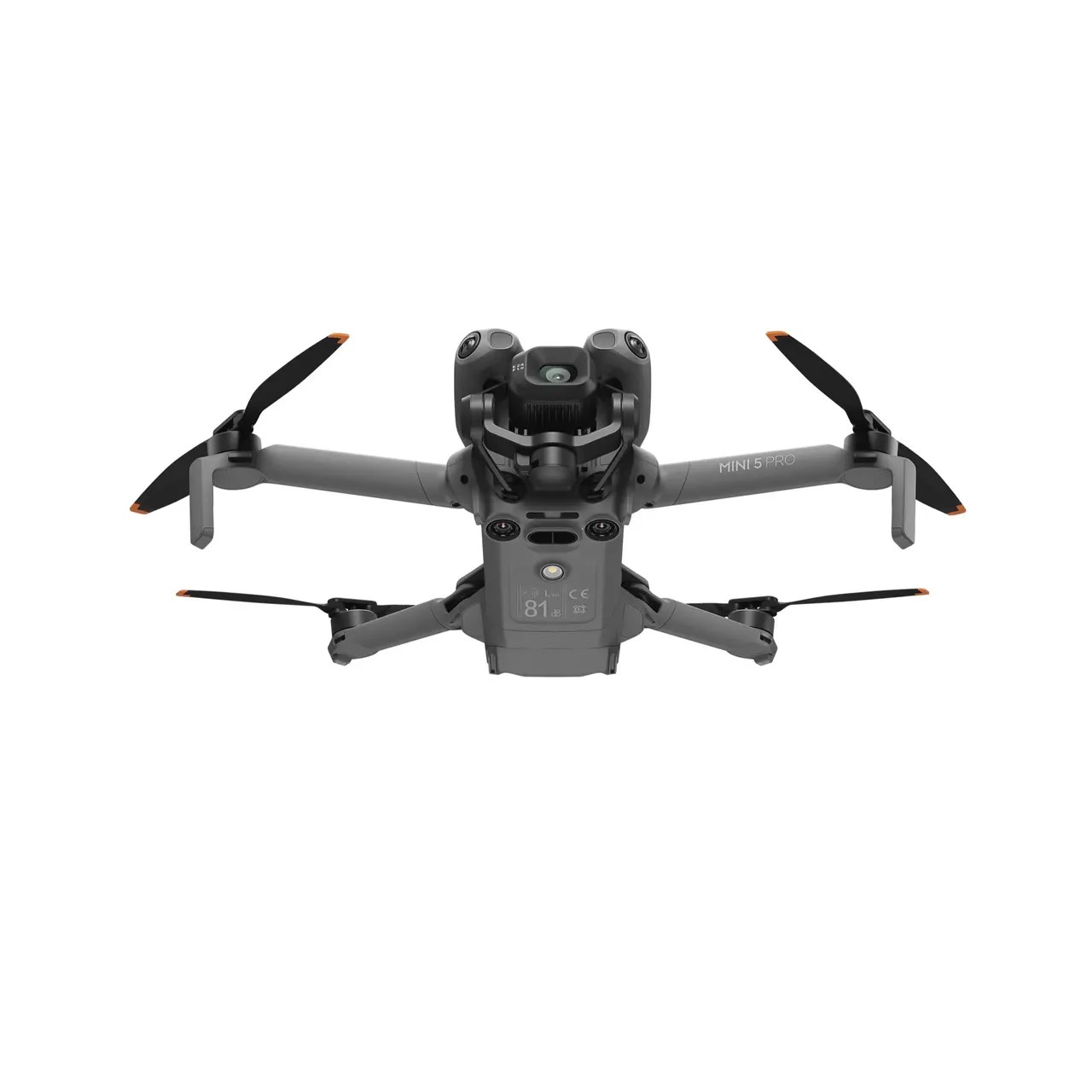
A session that connects successfully has already passed a different set of checks from one that never associates with Wi-Fi. If file transfer fails, start by downloading a single small, known-good file and confirm adequate space on the receiving phone. DJI’s guidance suggests testing internal aircraft storage versus microSD where supported, and reviewing card condition if transfers repeatedly stop. Do not format the aircraft media until original footage is safely backed up. A 4K video file may require substantial free space and time; a thumbnail displaying correctly does not establish that the full original is intact.
Also distinguish onboard camera originals from proxy clips and cached previews. Professionals should confirm the transferred file’s full resolution and duration before deleting aircraft media.
A decision table you can use at the hotel desk
| Observation | Most useful next check |
|---|---|
| Drone never appears in QuickTransfer | Supported model, aircraft state, Bluetooth and permissions |
| Aircraft appears but Wi-Fi will not join | Saved network, local network access, band support |
| Transfer starts then stalls | Phone free space, source media health, interference |
| Only one phone has the problem | OS permissions, Wi-Fi channels, device-specific compatibility |
Work one branch at a time. After each successful change, write down what actually changed so a repeat failure can be resolved quickly.
When to stop experimenting
If two compatible phones fail identically after permitted troubleshooting, record the model, DJI Fly version, aircraft firmware, exact warning and network behavior for DJI Support. Advanced manual IP-address instructions exist in the official article, but they are not universal and should only be used when directed and understood. They are not suitable as the first step for a nontechnical customer. QuickTransfer is convenient, but a card reader or approved direct file-transfer method may be safer for delivering a time-sensitive paid shoot while the wireless issue is assessed separately.
Frequently asked questions
Does QuickTransfer require the flight controller to be connected?
The feature uses a direct phone-to-aircraft workflow on compatible models; it is distinct from normal controller operation.
Should I format my SD card if QuickTransfer does not connect?
No. Connection failures need network diagnosis first. Back up files before any justified media formatting.
Why does 2.4GHz sometimes work when 5.8GHz does not?
Phone and regional Wi-Fi band/channel support can differ; DJI documents this as one possible compatibility cause.
slow SD-card troubleshooting · where video files are stored · DJI camera-drone selection
Primary technical source: manufacturer or regulator documentation. Source checked October 2026.