


DJI Phone Preview Looks Blurry but the SD Card Is Sharp? Find the Original Video


A phone gallery may contain a low-resolution preview rather than the aircraft’s original 4K clip. Before changing sharpness, filters or lens hardware, identify which file you are actually watching.
Find out which version of the video looks blurry
The most useful evidence for a blurry DJI video is the original file from aircraft storage. Compare it with the app cache and any edited export before concluding the camera is defective: each copy can have a different resolution, bitrate and crop.
| Observation | What it suggests |
|---|---|
| SD card is sharp; phone cache looks soft | Likely proxy/cache resolution difference |
| Downloaded full-resolution file still soft | Check focus, exposure, settings and original |
| Export is worse than the original | Review transfer and transcoding settings |
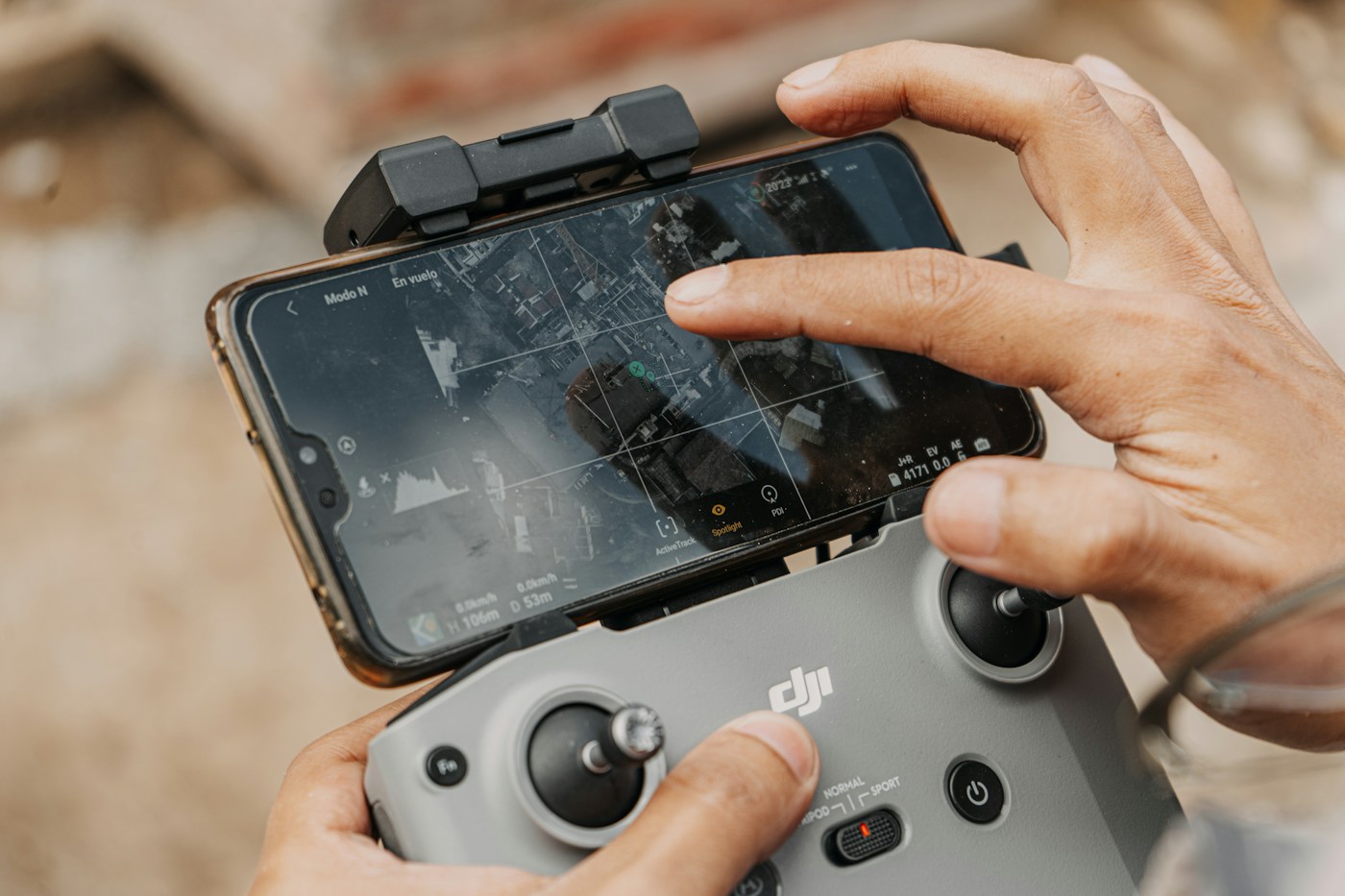
Diagnostic path
1. Find the recording source
Determine whether the footage was recorded to the aircraft’s microSD/internal storage or goggles DVR. The live-view cache is not necessarily the recording master.
2. Compare original file properties
Copy the file directly and inspect pixel dimensions, frame rate, bitrate and file size against the phone version.
3. Check DJI QuickTransfer
For supported aircraft, follow the model-specific QuickTransfer workflow and confirm transfer completion, media permissions and available phone storage.
4. Inspect where softness starts
If the original is sharp, focus and lens hardware are not the cause of the phone’s low-detail preview. If both are soft, inspect camera focus and recorded resolution.
5. Preserve masters
Keep original clips until postproduction is complete. Some social apps re-encode uploads to much lower resolution and bitrates.
In-depth tests and operating guidance
Identify what the customer actually opened
The low-resolution version stored on a phone may be a cache derived from the live transmission, whereas the original camera recording resides on the aircraft’s microSD card or supported internal storage. A file labelled with a familiar flight time is not sufficient proof that it is the master. Inspect the location from which the file was obtained, its pixel dimensions, frame rate, bitrate and file size. A 4K original usually contains far more image data than a heavily compressed phone preview, though exact sizes vary by duration and codec. Start with a copy of the real aircraft file before attributing low detail to the optical system.
A four-way comparison that saves time
Compare the same moment in the aircraft original, the DJI Fly preview, a completed high-resolution transfer and the final social-media upload. Keep the playback screen size and zoom comparable. If the aircraft original is sharp but the preview is soft, a camera repair is not indicated by that evidence. If the transferred version is also sharp but the Instagram reel looks blurry, check export resolution, vertical crop and platform compression. If the original is genuinely unsharp, examine focus mode, shutter speed, ISO noise reduction, lens condition and scene distance instead of adjusting transfer settings. This is a simple experiment customers can repeat.
Transfer paths have distinct failure modes
QuickTransfer uses supported wireless connections and device permissions; it may require the aircraft and phone to be in a particular state. A transfer that stops partway through can leave an incomplete or absent file. Direct USB, removable microSD and controller-mediated transfers have different capabilities depending on the DJI model. Follow the official method and confirm the destination contains the expected full-resolution recording. Do not erase the source card merely because a phone gallery thumbnail appeared. Preserve originals on at least one independent storage device before formatting for a new flight. A corrupt or missing source cannot be recreated by changing phone-app cache settings.
Why 4K is not the same as sharp video
A 4K container can still look soft when the camera has focused incorrectly, the shutter speed has introduced motion blur, a protective filter is smeared or the footage has been heavily cropped. For low light, very high ISO and strong noise reduction may reduce texture. For a rapidly moving FPV view, excessive motion blur can be mistaken for inadequate resolution. Review one static frame taken in good light at the original output resolution, not a paused low-bandwidth wireless feed. Compare footage with and without any optional ND or protective filters, but only where the camera’s manufacturer permits safe removal. Fix the capture issue before changing delivery codec.
Aspect ratio and social export pitfalls
When a wide 16:9 recording is reframed for 9:16 social content, the final output uses a much narrower area of the original image. A 4K landscape source may contain insufficient horizontal pixels for aggressive vertical crops at a particular target resolution. Stabilisation can introduce additional crop. Export should specify the intended dimensions, progressive frame rate, codec and a realistic bitrate. Avoid repeatedly saving and resending through messaging apps that recompress video. Compare an untouched transfer with the delivered reel at the same size to distinguish capture detail from postproduction losses. Do not assume a bigger camera sensor alone will solve a poor export workflow.
When a new card, camera or accessory is justified
If original clips show repeated corruption or recording warnings, check a genuine high-performance card against the manufacturer’s supported specifications and inspect the storage connector. If there is consistently soft focus or optical damage in original photos and videos, service may be justified. If only the cached preview is blurry, replacing a drone or adding an expensive lens filter would usually be wasted money. For a commercial creator, a reliable original-file backup process and well-tested export preset often have more value than unnecessary accessories. Make a sample delivery before a client shoot to verify what the viewer will actually receive.
Buying or repair decision
If the original camera file is sharp, concentrate on transfer and export quality before paying for camera service. Confirm whether a configuration, cabling, accessory or environmental factor explains the symptom first. Then compare exact compatibility—not the marketing name alone—and keep original parts until the cause is established. Relevant options are available through FalconFly UAV’s own store category.
Field cases and decision checklist
Case 1: The phone clip is half the dimensions of the SD-card file
A cached or preview file may have been generated from the live transmission at a lower resolution or bitrate. Use media information tools to compare frame dimensions, data rate and total size. If the aircraft master is sharp, there is no reason to replace the lens or sensor because the phone preview looks softer. Complete the model-supported high-resolution transfer or copy the original card. Confirm that the editor is using the high-quality source before exporting. Two clips with the same duration and thumbnail can have very different picture quality.
Case 2: A 4K file looks grainy only at night
This is more likely to involve exposure, high sensor gain, shutter settings and noise reduction than phone transfer quality. Compare a static daylight sample from the aircraft original with a low-light scene at original resolution. If daylight remains sharp, a defective lens is less likely. Excessive ND filtration at night can force higher ISO and worsen apparent detail. Check the exact model’s camera modes and avoid overpromising ‘lossless’ phone previews. A better exposure strategy often improves the result more than a new memory card.
Case 3: QuickTransfer shows a thumbnail but not the complete movie
A preview listing is not proof that a full-size file has been downloaded. Look for transfer completion, available free space, compatible device permissions and the manufacturer’s supported wireless workflow. Compare the output’s size with the original on the aircraft. If the process repeatedly stops at one segment, investigate the source recording as well as transfer reliability. Keep the camera original safe until the phone copy is verified, and don’t format the source card because a gallery application displayed an image.
Case 4: The final Instagram video looks worse than the export
A social service can transcode media and reduce bitrate, alter resolution or crop a horizontal video. Inspect the actual exported file on a local display before upload, then compare with the published version. Avoid repeated editing in messaging apps or sending the master through multiple recompression steps. Set the intended social aspect ratio from the beginning, and consider that aggressive vertical reframing of 16:9 footage discards source pixels. If both the camera original and exported master look clean, the customer should focus on delivery settings rather than repair the drone.
Field examples and further verification
Why the phone copy may be the wrong deliverable
A customer’s statement that ‘the 4K drone records in 720p’ can arise from an app cache downloaded for quick review. Different DJI products support different onboard recording and transfer paths, so confirm the specific aircraft, firmware and storage mode. Ask for the file’s actual frame dimensions from the phone’s information panel and compare them with the clip saved to aircraft storage. A smaller cache that plays instantly has a useful purpose: fast review without a full file transfer. It does not necessarily represent the sensor’s recording quality. Keep the original filename, file size and timestamp in the comparison so different clips are not mistaken for the same take.
A repeatable sharpness test without buying equipment
Film a static subject with fine detail in good lighting using the documented recommended settings. Transfer the original file from the drone, copy it to a reliable device and view it at native resolution. Then compare the app preview and any social-media re-upload. If sharpness is good in the original but poor in one downstream copy, test the compression and export workflow. If the original itself is soft, check focus mode, shutter and ISO as well as lens condition. A scratched accessory filter may cause flare, while fast movement can blur a frame despite a high-resolution sensor. Change one factor per test rather than resetting the whole camera.
How accidental downscaling happens in an edit
A phone editing application can build the project in a low-resolution canvas or export a draft-quality preview. Some services apply additional compression during sharing or upload. A file described as ‘high quality’ may still be smaller than the original and use a different bitrate or crop. Inspect exported width, height, frame rate and codec rather than relying on the export button’s label. When converting 16:9 drone footage to 9:16, much of the horizontal image is discarded and some editors upscale the remainder. Stabilization adds further crop. A camera replacement cannot restore pixels that the editor discarded. Establish a correct final delivery preset and export a short sample first.
Remember that recording media can be separate
A camera drone may record high quality internally while FPV goggles keep a lower-resolution DVR file. A client who exports the goggles clip instead of the onboard video will see different image quality and telemetry overlays. The differences may be entirely normal for the video system. Check whether the aircraft recording stopped because the SD card became full or slow; do not assume a goggles file is equivalent to the master. When multiple cards or devices are involved, label the media and use a consistent ingest folder. Keep the original file unmodified and backed up. When troubleshooting, quote both the file properties and where it was obtained.
Recommended workflow for a commercial operator
After the shoot, transfer originals to a working drive, verify the expected duration and sample frames, and create an independent backup before clearing cards. Organize footage by aircraft, date and shoot identifier. In the edit, use proxies only for smooth preview and reconnect to the originals for final rendering. Deliver the client a sample in the agreed format and check it on the platform they will actually use. If the source recording is repeatedly defective despite correct settings and approved media, investigate the camera or flight hardware with DJI support. If only the phone cache is soft, save the customer the expense of an unnecessary repair.
Frequently asked questions
Is DJI Fly’s cache 4K?
Do not assume the cached video is the same as the camera’s original.
Will QuickTransfer repair a bad original?
No, it transfers files; it cannot restore lost detail.
Before your next flight or project
Once you have confirmed that the aircraft original is intact, preserve it before further QuickTransfer or phone editing. Check the social export for crop and recompression separately; a low-quality preview alone does not justify servicing a camera.
Technical reference
DJI QuickTransfer instructions. QuickTransfer workflows vary by DJI aircraft and controller, and not every phone copy is the camera original.