One pilot sees Dronie, Rocket and Circle. The next pilot on the same filming day cannot even select QuickShots. Before concluding an app bug, establish what the aircraft can do in the selected mode, whether the subject can be tracked and whether the environment satisfies the system’s safety requirements.
Safety first: Automated tracking does not eliminate collision risk. Do not run a QuickShot near people, wires, glass or obstacles without a clear flight envelope and required local permission.
Confirm the exact aircraft and firmware, not the DJI Fly app alone
DJI Fly is a common interface across aircraft generations, but feature support is not universal. QuickShots availability and the list of patterns depend on the exact model. A new phone running the same app as a friend’s aircraft does not guarantee identical features. Identify the aircraft model in Settings > About, verify the installed firmware and check the official manual for QuickShots and any mode-specific limits. If the manual does not list a mode, reinstalling DJI Fly will not add it.
Shooting-mode conflicts hide features
The aircraft may be in a shooting mode where QuickShots is not available—for instance some frame-rate, resolution, color, vertical or intelligent-flight combinations. Exit the current automated mode; change to a supported normal video mode and inspect the shooting menu again. Also check whether a special controller or goggles mode changes feature availability. Use the on-screen feature labels, not memory of an older DJI Fly version, because interface placement can shift over time.
Subject selection is the second gate
Even when QuickShots is visible, the Go or Start control may remain disabled until the aircraft recognizes a valid target. For supported modes, drag a selection rectangle or tap a recognizable subject and wait for the target indicator. Featureless surfaces, backlighting, occlusions, subject distance or a subject outside the approved range can prevent selection. A face or vehicle hidden behind foliage may cause failure after the mode starts. Do not attempt to defeat the tracking checks; improve the shot composition and lighting.
Preflight conditions and GPS matter
Some smart flight functions require reliable position information, sufficient light and sensors operating inside their defined range. Check satellite status, vision alerts, battery level and system warnings at a legal open-air test location. Move away from high electromagnetic interference and roofed spaces. If a function is disabled because sensors cannot operate, restarting the app will not change the optical properties of the scene. Many pilots confuse the absence of an automatic subject lock with a loss of GPS; distinguish the actual error message.
When it works but aborts midway
Mid-shot cancellation can occur because the aircraft loses the target, meets an obstacle/flight boundary, reaches a low-battery or link-protection condition, or receives pilot intervention. Log the exact error and capture location, lighting and aircraft status. Use a smaller, safer movement and a high-contrast stationary subject to compare. Never use a busy street as the troubleshooting range. If the aircraft’s normal flight and vision status also show problems, use DJI diagnostics before the next automated shot.
Quick diagnostic matrix
Symptom
First check
Likely category
QuickShots absent from menu
Model and selected mode
Feature support/mode restriction
Menu present, Start disabled
Subject detection and surroundings
Tracking precondition
Flight aborts midway
Target, obstacle and flight alerts
Execution safety condition
Feature worked yesterday
Firmware, mode and exact warning
Changed configuration
Confirm that the exact aircraft supports the requested QuickShot
QuickShots is a family of automated cinematic movements rather than one identical feature offered by every DJI model. DJI’s official support pages list different aircraft and shooting patterns, and some functions depend on the selected controller or control mode. A QuickShots option that appears in a tutorial video for another aircraft is not proof that it should appear on the customer’s drone. Check the exact product name, aircraft firmware, controller and DJI Fly version against the current manufacturer documentation before reinstalling the app or resetting any settings.
Also distinguish a missing QuickShots menu from an individual pattern that cannot be selected. Dronie, Rocket, Circle, Helix, Boomerang and Asteroid can have different availability across products, as well as different path-clearance requirements. If a model offers only some patterns, the absent others may simply be unsupported. Ask the customer which specific mode they expect. A precise question avoids searching for a ‘software problem’ that is actually a product capability difference.
Check camera shooting mode and active flight state
QuickShots may not be available while certain camera modes, resolutions, intelligent functions or flight modes are active. Before troubleshooting, return to an ordinary supported shooting state and confirm the aircraft is ready for its normal flight controls. DJI’s interface and feature restrictions vary with product generation, so avoid a universal claim that one video setting is required for every model. Read the current user manual for the combination you are using. Record the exact mode that caused the option to disappear and whether it returns when the mode changes.
Do not immediately reset the entire camera or aircraft. A change to a special recording profile, an unsupported frame rate or an active incompatible feature may be enough to explain the restriction. If QuickShots becomes selectable in a basic video mode, treat the original recording configuration as the variable to investigate. Test the feature only under appropriate conditions after confirming the aircraft is ready. Keep the settings record so the operator can return to their preferred camera profile afterward.
Subject detection is a separate gate from mode availability
Even when a QuickShot pattern can be opened, it may not start until the camera identifies an eligible subject. DJI’s official operating instructions describe selecting a subject in the live view, usually through a subject indicator or drawing a selection around it. Low contrast, challenging backlighting, an object that occupies too little of the frame or an obstructed target can make detection unreliable. A failed target selection is therefore different from the QuickShots mode itself being greyed out. Separate those stages when documenting the fault.
Use a clear, stationary subject in a safe open area for the initial supported test. Avoid forcing the drone to track a moving vehicle, an animal or people where the flight path could become hazardous. Ensure the subject is adequately lit and clearly visible in the frame. If the selected target is lost during a maneuver, the aircraft may interrupt the automated sequence. Do not assume the camera can identify every subject or recover from every occlusion. Operators must be prepared to pause or terminate the maneuver.
GNSS and positioning conditions affect automated movements
QuickShots uses controlled aircraft motion and needs appropriate positioning information for the supported aircraft and selected mode. A weak GNSS state, uncertain Home Point or unsuitable sensor environment can block or compromise intelligent functions. Review the flight-status messages before troubleshooting the app interface. A drone flying manually in some conditions does not prove that all automated modes should be available. Where applicable, wait for the required positioning state before selecting a pattern rather than trying to override warnings.
Indoor spaces, reflective floors, low light and nearby buildings can degrade positioning or scene understanding on supported drones. Do not use QuickShots as a substitute for skilled manual navigation in these environments. If the issue occurs only at one location, compare with a clear, legally permitted outdoor test area rather than immediately reinstalling DJI Fly. The difference can reveal an environmental prerequisite that software changes cannot resolve. Record lighting, GNSS status and obstruction details for support.
Plan the entire QuickShot trajectory, not just the launch point
Many QuickShots paths travel outward, upward or around the subject. A scene may look clear from the current hover position while the planned maneuver crosses trees, wires, walls or other aircraft. DJI warns users to select locations with suitable clearance. The route and needed separation vary by selected pattern and aircraft. Do not assume that an obstacle-sensing feature will protect every direction or detect every object. A small wire or a glass surface can be particularly difficult for vision systems to interpret.
Before selecting Start, visualize the whole route, including the maximum upward or backward movement and the likely stopping point. Assess obstacles, airspace, people, property and legal conditions. Choose a conservative pattern and distance for the first attempt. Know where the pause control is and what the aircraft will do when a QuickShot is interrupted. This is an automated filming aid, not permission to fly unsupervised. Keep the aircraft within the applicable operational limits and maintain required observation.
Diagnose an aborted QuickShot differently from an unavailable one
If QuickShots appears normally and begins a maneuver but stops early, examine the message displayed at the moment it aborts. Subject loss, environmental restrictions, battery status or positioning changes may explain an interruption. An option that never appears has a different troubleshooting path involving model support, firmware and current app mode. Do not combine all symptoms under ‘QuickShots broken’. Record whether the aircraft actually moved, whether filming began and whether it hovered or returned to a previous position when the operation ended.
After a safe interruption, land and review the conditions before another attempt. If the same simple pattern repeatedly stops with one subject but succeeds with another under similar safe conditions, target recognition may be more relevant than app installation. If every pattern fails after an update, inspect the firmware and supported configuration. Avoid repeated automated attempts near obstacles simply to generate a support video. A short, controlled example with a clearly visible error message is usually enough.
A useful support checklist and buyer expectation
Provide DJI support with the exact aircraft, controller, app and firmware versions, the requested QuickShot pattern, camera mode and flight-state messages. Explain whether the feature is missing, greyed out, cannot select a subject or aborts after starting. Include the approximate lighting and positioning conditions without exposing private client footage unnecessarily. This helps distinguish unsupported features, app conflicts, environmental prerequisites and possible equipment faults.
When advising a buyer, describe QuickShots as a set of model-specific automated filming tools, not a universal intelligent tracking guarantee. Confirm the desired pattern on the exact aircraft before recommending a purchase. An experienced operator should still understand the shot’s flight path and emergency interruption procedure. A feature that works in an open demonstration area can be inappropriate in a crowded venue. Good expectations reduce complaints and encourage safer, more reliable filming.
FAQs
Does every DJI Fly drone have QuickShots?
No. Feature availability is aircraft-specific; verify the official product manual.
Does strong GPS guarantee QuickShots?
No. Subject recognition, lighting, distance, mode settings and sensor condition can also matter.
Can I safely use QuickShots indoors?
Do not assume so. Model-dependent positioning, obstacle detection and local venue conditions can make indoor automation unsafe.
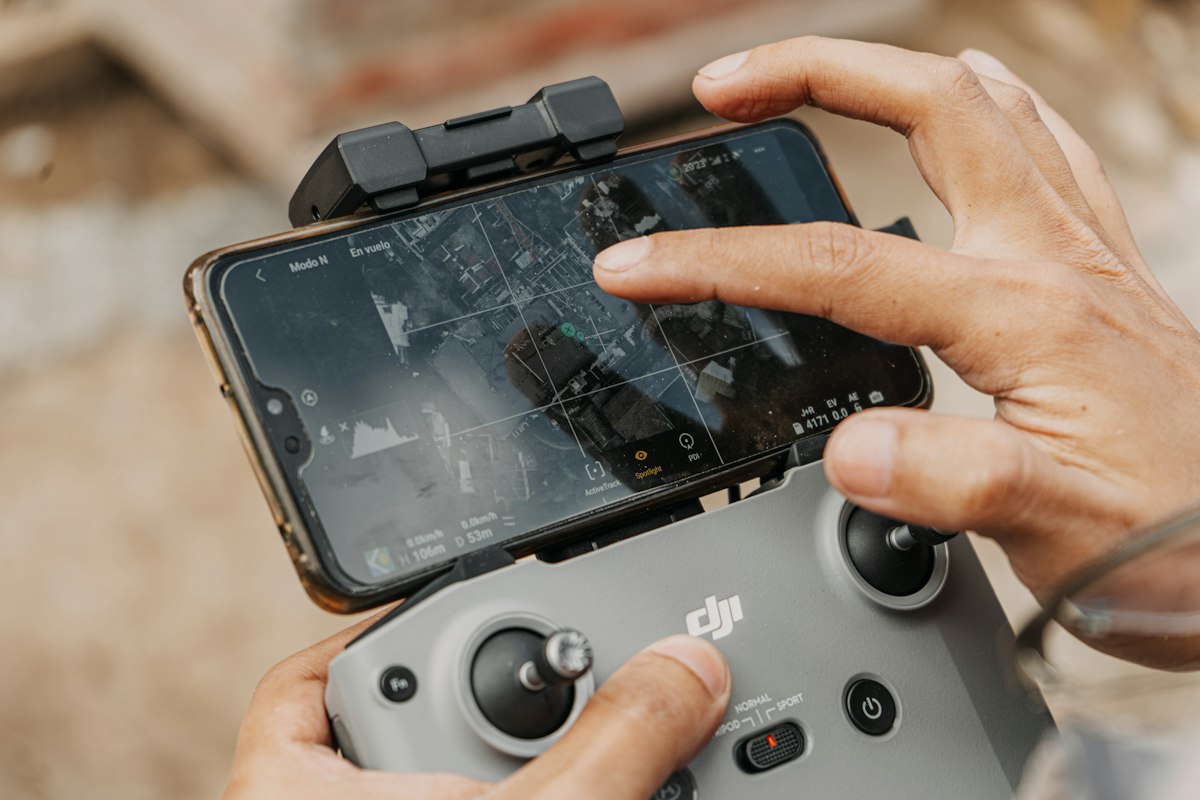
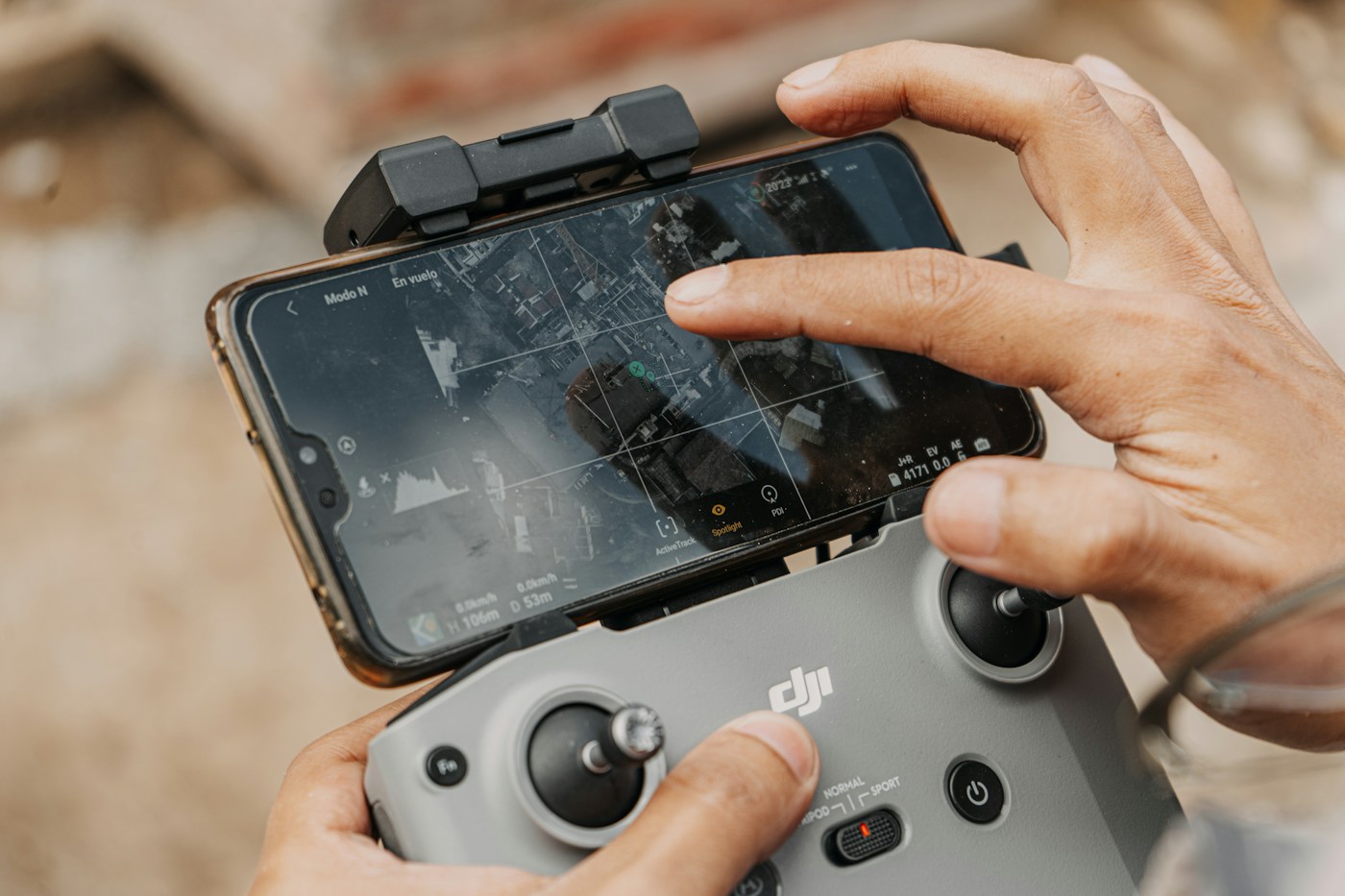
Illustrative DJI filming workflow; QuickShots availability depends on aircraft, recording mode, subject selection and flight conditions.
Follow the latest device manual and manufacturer instructions for the exact firmware and product variant. Forum observations are useful leads, not proof that every build behaves identically.