


RadioMaster Works in EdgeTX but Not in Your FPV Simulator? Fix USB Joystick Mode

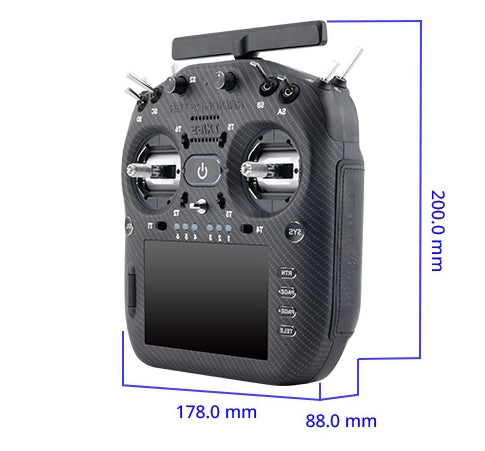
The radio works with your drone, yet your computer treats it like a charger or a storage drive. The FPV simulator cannot see it—or roll and throttle move on the wrong axes. Rebinding the receiver won’t help because USB simulator control does not require the aircraft radio link at all. Instead, investigate the cable, EdgeTX USB mode, operating-system controller detection and the simulator’s own mapping page.
Start by ruling out the easiest physical mistake
Some USB-C cables provide power only. A radio can light up or charge through such a cable without exposing any data connection to Windows or macOS. Use a known-good data cable connected directly to a suitable computer port before installing drivers or changing firmware. On radios with multiple USB connectors, verify which is intended for data. Avoid USB hubs during initial troubleshooting; once detected, you can test your preferred hub separately.
Select the correct USB mode
Compatible EdgeTX radios may prompt for USB mode: Joystick, Storage or Serial. Choose the appropriate joystick option for an FPV simulator. EdgeTX documentation describes Classic and Advanced joystick mappings on supported color radios. Classic is a sensible starting point because operating systems and games differ in how they interpret HID axes. Turn off internal and external RF modules for a dedicated wired simulator model where advised by EdgeTX, and do not leave a live aircraft armed nearby.
Check computer detection before opening the game
On Windows, inspect the installed game-controller inputs; on macOS, use a compatible input inspector or the simulator’s calibration screen. If the operating system doesn’t detect an HID device, changing the game’s joystick sensitivity will not help. If the OS sees it but the game does not, suspect simulator configuration or software permissions. EdgeTX Advanced mode may expose a different controller descriptor; the official manual notes that reconnecting USB after changing joystick mapping can be necessary.
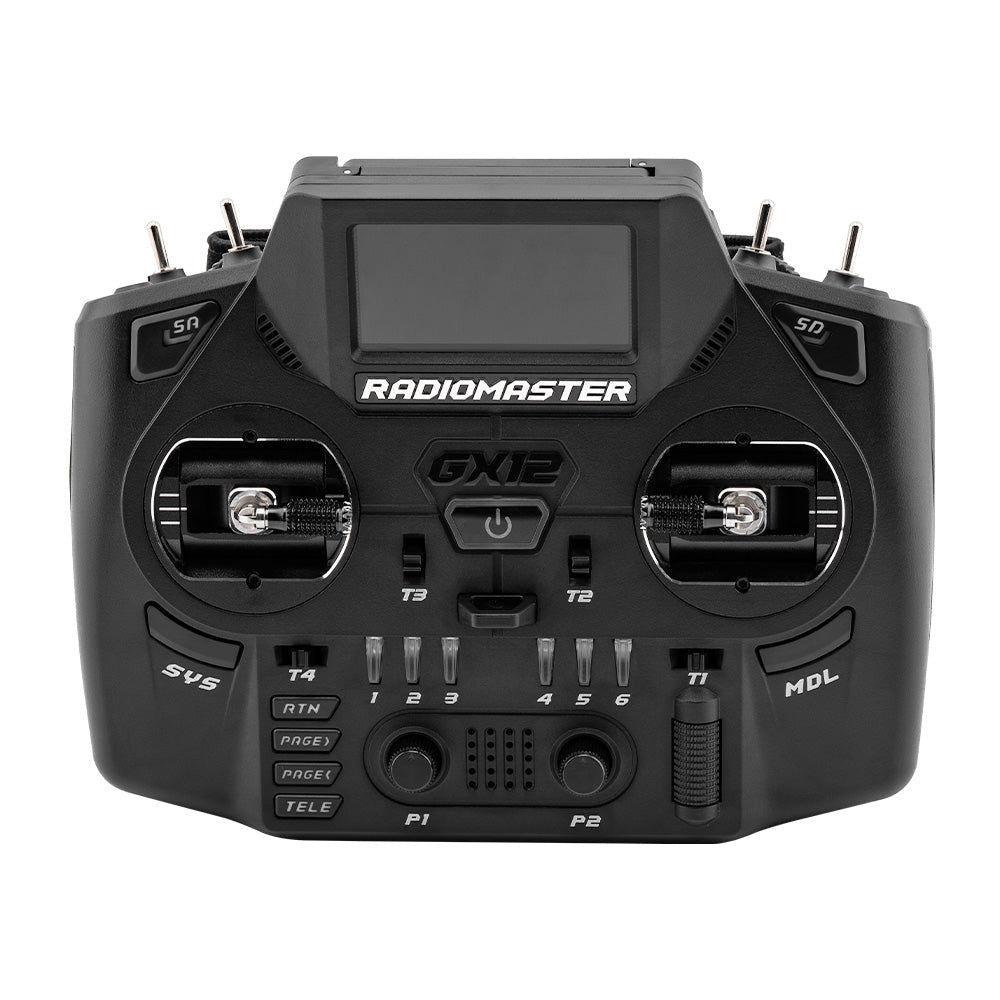
Fix axes by observing the output—not guessing
| Symptom | Likely cause |
|---|---|
| Radio only charges | Power-only cable or wrong port |
| Computer sees a disk | Storage mode rather than Joystick |
| Sticks move wrong controls | Axis and channel mapping mismatch |
| Throttle centered unexpectedly | Calibration or model output setting |
| Buttons not recognized | Advanced HID layout or simulator support |
Make one clean practice model
Instead of modifying the model you use with a real aircraft, create an EdgeTX simulator profile with known stick mixes, sensible output range and no active RF module. Calibrate four axes in the simulator and check full endpoints, not just center positions. Save that profile when it works. Later, you can switch between practice and aircraft models without changing the live control setup. A good simulator connection should feel repeatable every time you plug in, not require an hour of troubleshooting before each session.
Why a simulator profile is worth creating
Consider someone using a TX16S MK3 for a real aircraft and for several FPV games. The flight model has particular channel assignments, voice alerts and RF module settings. A simulator-only model can keep those aircraft-specific settings separate, allowing a known USB HID mapping without risking an accidental change to the live flight configuration. The pilot still uses the same physical sticks and muscle memory; only the radio’s software output path changes.
If stick centers appear wrong only in one game, check that game’s calibration. If centers are wrong across operating-system input testers, inspect radio outputs and calibration instead.
A setup sequence you can repeat on any laptop
Pack a known USB data cable. Turn on the radio, choose the simulator model, and select the supported joystick USB mode. Confirm OS detection, then run the game’s control calibration with full stick movement. Map throttle separately so it is not mistakenly treated as a spring-centered axis. After changing an Advanced joystick descriptor, unplug and reconnect the cable if the OS retains an old layout. Keep notes of the working profile for macOS or Windows rather than changing six variables each time.
Frequently asked questions
Does USB simulator flying use ExpressLRS radio frequencies?
No. Wired USB joystick control can operate without an RF link.
Why did my radio appear as a storage drive?
The selected USB mode was storage rather than joystick.
Can the same radio use different stick mapping per simulator?
Yes, through compatible EdgeTX model or HID settings, with careful calibration.