

HDZero Monitor (No DVR): Why Recording Is Missing and How to Tune Analog Video

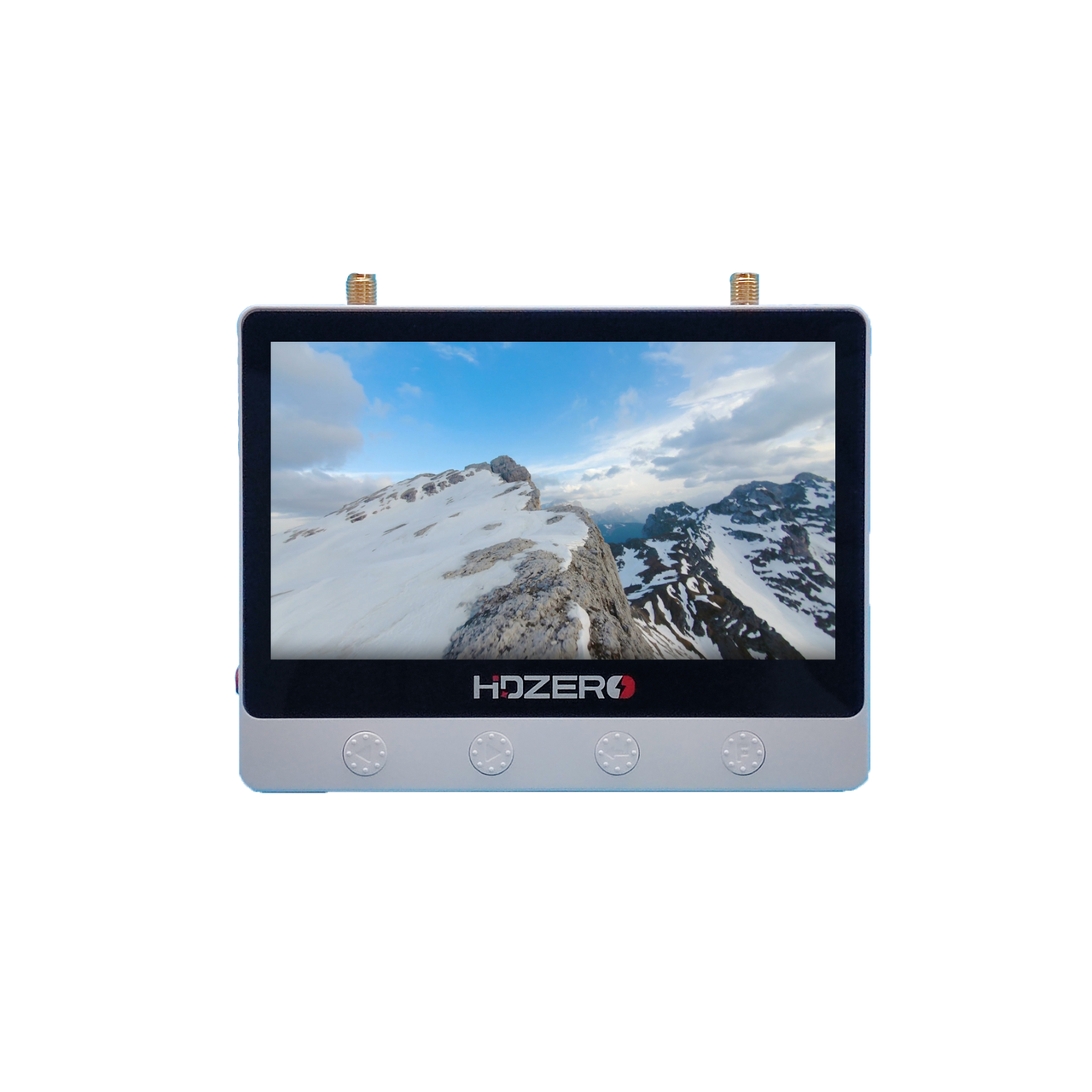
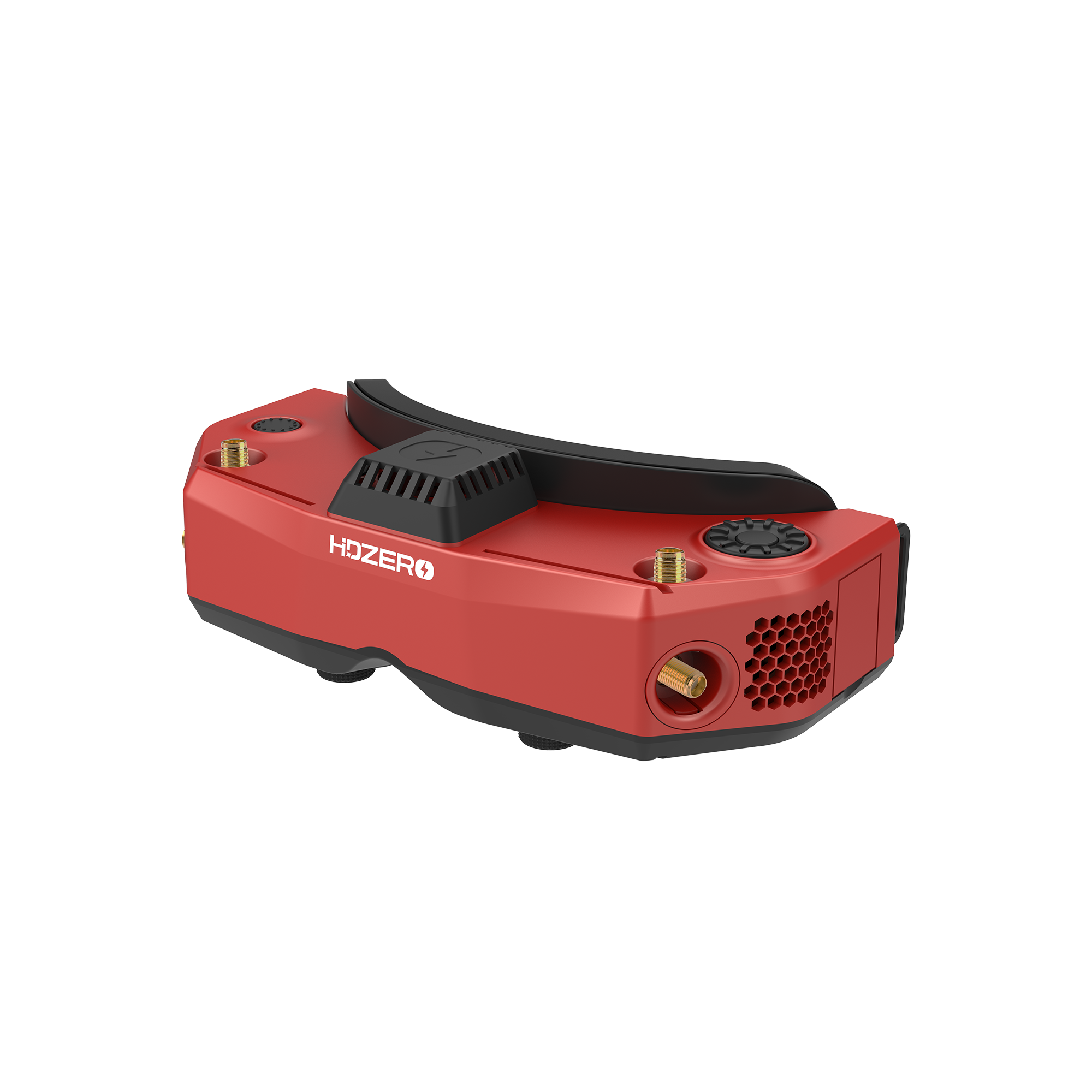
You connect a clear HDZero or analog video feed to the HDZero Monitor (No DVR) and try to start a recording. The problem may not be your microSD card or firmware: the exact product sold is the No DVR variant. A confusing detail is that HDZero’s general online monitor documentation describes a built-in DVR, while the manufacturer’s specific product listing identifies a No DVR model. Version matters more than generic documentation.
First, identify the actual model and revision
The current manufacturer listing is titled HDZero Monitor (No DVR) and uses SKU HDZ3581. Its feature list focuses on instant start, HDZero/analog viewing, 720p 4.3-inch display, HDMI output, CVBS input and 2–6S power. The manufacturer’s generic monitor introduction also contains a DVR feature—a mismatch that makes product identification essential. Do not install random firmware or promise a hidden DVR option without revision-specific evidence.
Why auto-switching does not mean auto-scanning
HDZero’s official operation manual specifically says its Monitor does not scan for a channel automatically; you must choose the band and channel yourself. Once the selected RF channel is tuned, it can detect HDZero or analog signal format and switch between them. If the screen is blank, guessing another battery or a new display is not the first diagnostic step.
The quick troubleshooting routine
- Remove propellers before bench testing. Keep a powered VTX cool with proper airflow and legal RF power.
- Choose the correct source. The monitor supports RF In and Line In; select RF for its antennas, Line for a wired composite signal.
- Set band and channel explicitly. Cross-check the VTX’s exact transmit frequency, including whether the signal is analog or HDZero digital.
- Check antennas and connectors. Make sure the receive antennas match the transmitter’s polarization and are not loose or damaged.
- Confirm supported input power. HDZero specifies 6–26V supply, with 2–6S packs through XT30 or supported DC input and built-in protection.
- Use HDMI for external capture. If you need a recording from the No DVR monitor, plan a compatible recorder connected to the supported HDMI output rather than assuming onboard storage.
Monitor versus Goggle 2 for a real FPV workflow
| Decision | Monitor (No DVR) | HDZero Goggle 2 |
|---|---|---|
| Primary use | Viewing at pit table, spectators, tripod | Immersive pilot view |
| Onboard DVR | No for this specified edition | Built-in recording for digital and analog video |
| Signal selection | Manual band/channel; automatic format recognition | HDZero digital scan and separate source controls |
| Display | 4.3-inch 720p LCD, 800 nits | Binocular OLED FPV display |
What about firmware updates?
The USB-C port is intended for settings and firmware management. Refer to the product’s current manual; a firmware update cannot create missing storage hardware. If your unit’s packaging and menu contradict the model specification, contact the seller with the hardware revision and a photo of the label rather than assuming one guide fits every SKU.
Related FalconFly guide
For broader practical context, read our FPV monitors, DVR functions and goggles guide. It complements this product-specific troubleshooting workflow.
Why “No DVR” matters to a buyer’s deliverable
A client may require footage of a test flight, training session or inspection. The No DVR version of the HDZero Monitor should not be advertised as recording internally merely because the screen displays a digital RF image. The available input and output interfaces depend on the exact hardware revision, and an external recording workflow must be selected only from manufacturer-supported outputs. A camera’s onboard recording is another independent option, but it will not automatically contain the same live on-screen OSD or radio-link interference that a goggles/monitor DVR would capture.
| Requested result | Appropriate diagnostic or capture layer |
|---|---|
| Watch real-time FPV video at a field station | Monitor receiver, power, antennas and correct channel/video mode |
| Save a camera-quality original file | Supported camera or digital air-unit onboard recording, if the system has it |
| Record the monitor’s exact live display | Manufacturer-supported external output and compatible external recorder |
| Review RF interference after the flight | Receiver-side recording where supported; a clean onboard original will not show all RF dropout artifacts |
What to photograph before contacting support
Record the monitor’s exact SKU and “No DVR” designation, firmware build, active video input, selected manual channel, power source, transmitter model and antenna arrangement. If the screen is black, note whether its menu is visible; that separates display power from an unavailable RF image. If the picture works but a record function is absent, first compare the unit’s hardware feature list with the user’s expectation. Do not add an SD card or flash firmware on the assumption that a disabled hardware recorder can be created by software. A product called a monitor should not be treated as functionally identical to HDZero Goggle 2.
Manufacturer sources
HDZero official No DVR monitor listing, HDZero Monitor operation guide and HDZero general monitor introduction (verify revision).