

DJI D-Log M Footage Looks Grey and Flat? Fix the Color Workflow Without Crushing Highlights

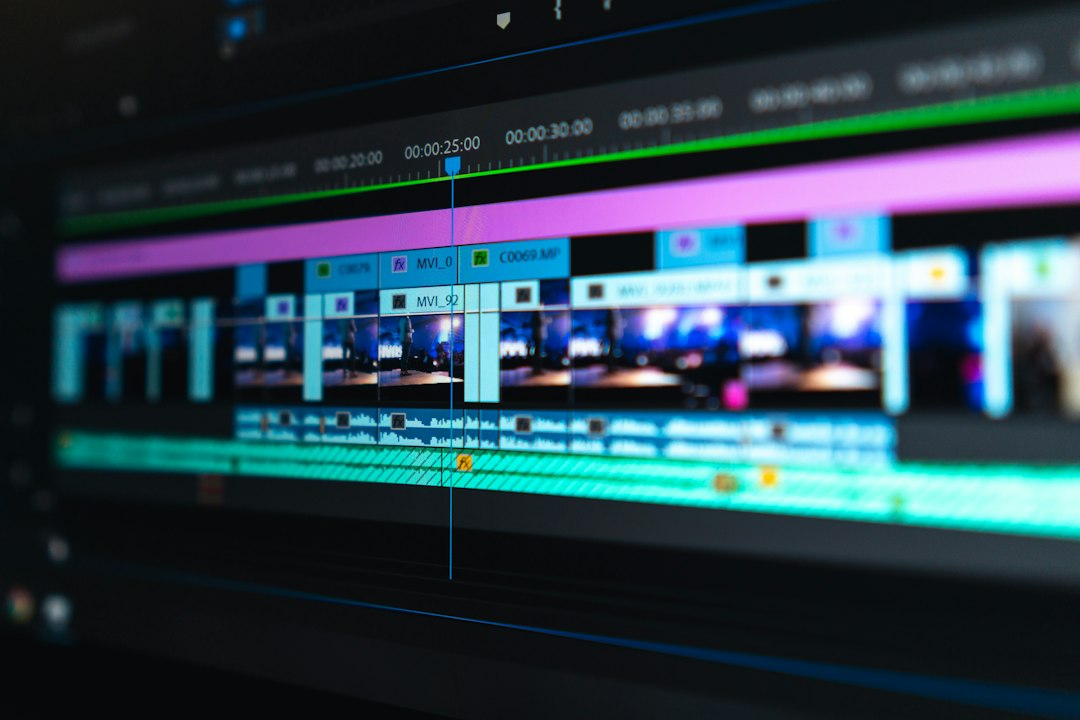
The preview looked cinematic, but the video exported from your editor is pale, low-contrast and disappointing. That is often normal log footage being viewed or exported without an appropriate display transform—not a broken DJI camera sensor.

Choose the right response to the symptom
| Observed symptom | What it may indicate | Safe first check |
|---|---|---|
| Original log footage looks flat | Expected log representation without display transform | Use a matching model-specific Rec.709 conversion |
| After LUT the blacks are crushed | Double conversion or wrong input profile | Check timeline color management and node stack |
| Different cameras have different colors | Different gamma/gamut or sensor response | Normalize each source before creative grading |
1. Identify the recorded profile first
Before grading, check whether the original file was recorded in Normal, HLG, D-Log, or D-Log M. These are not interchangeable profiles. Applying a D-Log M transform to Normal footage can make it overly contrasty, and assuming one DJI model’s LUT is correct for another can shift skin tones or highlights.
2. Separate the technical transform from the creative look
A technical conversion maps log-encoded material to a conventional viewing space such as Rec.709. A creative look is an artistic adjustment made after a sound transform. Use the manufacturer-provided model-specific LUT or a correctly configured color-managed workflow. Avoid stacking two Rec.709 conversions accidentally.
3. Expose log material deliberately
Log capture does not eliminate the need for proper exposure. Underexposed footage lifted heavily in post can show noise, while clipped sunlit areas may remain unrecoverable. Use the histogram, zebra and monitoring aids available for your camera; do not overexpose blindly based on generic social media advice.
4. Match clips shot on different cameras
DJI O4 Pro, a consumer camera drone and an Osmo device may all offer log-style recording but have different color response and dynamic-range limits. Normalize the source footage first, then balance white point, skin tones and contrast before applying a shared creative grade. This is particularly important for mixed FPV and stabilized aerial edits.
5. Export with the correct output assumptions
Check timeline color management, monitor preview behavior and export tagging. Footage can look different across video players if gamma and color metadata are interpreted differently. Test a short clip on the actual display platform before processing a client’s complete project.
Example: a clip looks flat and then becomes too contrasty
Identify whether the original clip is D-Log M, D-Log, HLG or Normal. In a neutral editing project, apply one appropriate technical conversion to Rec.709 and inspect the image before applying a creative look. If blacks crush after the LUT, verify the input profile and check for a second automatic color-space transform; do not assume the camera or recording is defective.
Purchasing and workflow implications
Before spending money on replacement hardware or a more expensive drone, decide whether the limitation is optical, computational, regulatory or simply an editing workflow issue. Check exact model specifications and firmware compatibility, especially where subject tracking, camera profiles or navigation modes are model-specific. Explore DJI and FPV equipment available from FalconFly (related equipment: DJI O4 Air Unit Pro), but choose parts only when the diagnosis indicates they solve the actual problem.
Related FalconFly articles
- DJI O4 Pro 4:3 vs 16:9: Record Once, Deliver Vertical and Wide Video
- DJI O4 Pro ND8 vs ND16 vs ND32: Exposure Guide for UAE Sunlight
A simple color-management sanity check
Take one original D-Log M clip and grade it in a neutral project. Apply either a correctly configured color-managed input transform or the official camera-specific Rec.709 conversion LUT—never both on the same node chain. If the image suddenly has crushed blacks and harsh saturation, investigate an accidental second transform before reducing exposure or purchasing different filters.
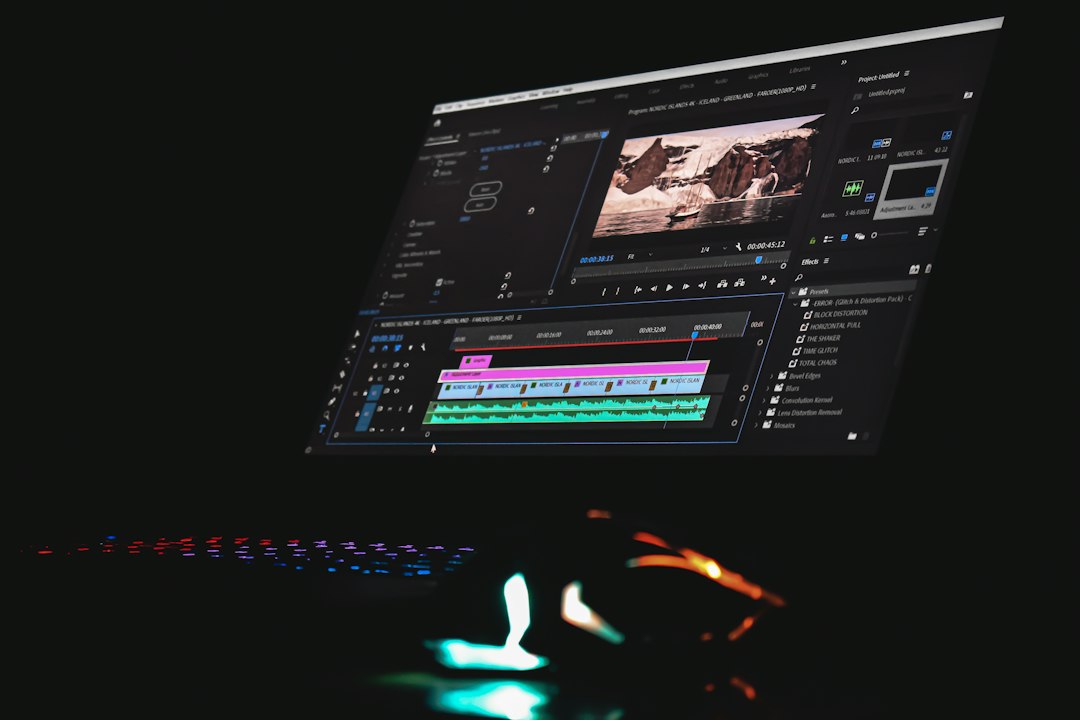
Once the technical conversion is correct, normalize white balance and exposure before creative color. DJI O4 FPV footage and larger-sensor stabilized drone footage can respond differently to the same LUT. Confirm the actual recorded profile, especially when clips were recorded in different modes on the same trip.
Frequently asked questions
Why does D-Log M look washed out before editing?
Log encoding intentionally preserves tonal information in a low-contrast representation. Apply a compatible model-specific D-Log M-to-Rec.709 conversion or a properly configured color-managed input transform for normal viewing.
Can I apply DJI’s D-Log LUT to D-Log M footage?
No. D-Log and D-Log M are different profiles. Check the actual recording mode and select the matching DJI LUT, including the appropriate camera model.
Why do blacks look crushed after using a LUT?
Check for a double color-space conversion, incorrect input gamma, mismatched footage profile or overly aggressive contrast before changing the source exposure.
Manufacturer reference
DJI’s official LUT downloads provides the official model-specific reference for this guide.