The radio still transmits, switches work and models load. But arming announcements or telemetry warnings have vanished—or the radio still says ‘Welcome to OpenTX’. That usually points to SD card assets and language selection, not a dead speaker.
Firmware and audio assets live in different places
EdgeTX firmware updates can change the radio’s software without replacing the SD card’s SOUNDS directory. The radio may therefore boot correctly while old OpenTX recordings, absent WAV files or mismatched language folders remain on the card. EdgeTX’s official FAQ specifically addresses an OpenTX welcome message after an EdgeTX firmware upgrade: update the sound pack and confirm the active voice language. The same principle applies when a custom sound is missing from a special-function selection list.
Verify the active language directory
Connect the radio in USB storage mode or remove the SD card safely. Locate SOUNDS on the storage root and then the language subdirectory, for example SOUNDS/en. Match that folder to the Voice Language selected in Radio Setup. A sound pack hidden one folder too deep, or placed under a different language name, may be invisible. On the radio’s SD card browser, select a WAV file and try Play. If it plays there but not during an event, the problem is likely the function trigger, not the audio decoder or speaker.
Download the appropriate official sound assets
Obtain sound packs from the EdgeTX project’s official release assets, not an arbitrary forum attachment. Back up the current SOUNDS folder first. Copy the language directory into the correct location; leave your personal custom tracks stored separately for comparison. EdgeTX documents mono PCM WAV expectations and supported sample rates for custom sounds. Renaming an MP3 to .wav does not convert its encoding. Use a short, compatible filename and check the radio can play it before assigning it to a switch.
Special Functions and Global Functions must also trigger
A working sound file does not guarantee a voice announcement. Review the chosen model’s Special Functions and the radio’s Global Functions: switch condition, enabled flag, repeat setting and Play Track or Play Value action. A low volume knob or a model-specific function that is disabled can make an otherwise correct SD card appear silent. Some system phrases are in the language SYSTEM folder and are triggered automatically; custom tracks for your own switches are configured differently.
Restore alerts without losing a day of flying
Test startup audio, one manually triggered switch phrase, telemetry-lost indication and a battery warning simulation only through safe bench testing. Verify the speaker/headphone path if nothing plays even from the file browser. Preserve a backup of the working SD structure and firmware version alongside model configurations, so future upgrades can be rolled back coherently. Critical radio alarms should be independently confirmed on the ground before any flight.
Diagnostic decision matrix
Symptom
First check
Probable layer
OpenTX welcome after EdgeTX update
Official EdgeTX sound pack
Old assets
No WAV files in Play Track
SOUNDS/en structure and language
Directory mismatch
File plays but switch silent
Special Function enable/trigger
Radio configuration
Nothing plays even in file browser
Volume, speaker, file format
Playback path
Understand that EdgeTX firmware and audio files are separate assets
When an EdgeTX radio is updated, the operating system firmware and the audio resources stored on its memory card may no longer be aligned. A radio can boot, transmit correctly and display every menu while voice alerts remain silent because the requested sound file is not present in the expected language folder. That is different from a broken speaker. Begin by checking the exact firmware version and the sound-pack release intended for it rather than assuming the new firmware erased the radio’s sound hardware.
The SD-card structure matters. Supported radios generally organize sound resources under language-specific directories within a SOUNDS folder, with file names referenced by the operating system or configured special functions. Do not replace the entire storage card casually. It may also contain model backups, scripts, widgets and user assets. Copy the relevant card contents to a computer before changing any files and preserve the current arrangement so an accidental mismatch can be reversed.
Classify the silence: system prompts or custom alerts
Ask whether every voice prompt is missing or only a particular battery, arm-switch or timer announcement. If system prompts work but a custom warning is silent, the speaker and basic audio path are probably functioning; inspect that alert’s Special Function, trigger condition and referenced file. If the entire radio is silent, review volume, mute-related settings, headphone routing where applicable and the presence of the expected sound resources. A low volume or inactive trigger can appear identical to a missing file in a brief demonstration.
Use a simple known sound action to separate playback capability from event logic. If it plays correctly, inspect the logical-switch or function configuration used by the missing alert. Check whether the action depends on a telemetry value that is currently unavailable. An alarm tied to a stale battery sensor will not necessarily activate when the pilot expects. Restore the signal or trigger logic before replacing sound files. This distinction can save a full reinstall and prevents unrelated radio-model settings from being disrupted.
Check language folders and file naming carefully
A sound pack intended for a different language or EdgeTX screen family may place files in paths that the current configuration never uses. Confirm the selected language and the directory names expected by that firmware. An alert referencing an English sound file will not automatically locate an unrelated file stored under another language folder. Some custom voice announcements use filename conventions that must be preserved. Avoid changing the names of many files at once; test one known reference first to establish the correct path.
When copying files from a computer, make sure the transfer finished and the card was ejected normally. A partially copied sound pack can leave some prompts working and others missing. If the storage card is unreliable or reports errors, verify its integrity separately from firmware troubleshooting. Avoid using an unknown downloadable sound bundle merely because it contains familiar audio: obtain the correct assets through official EdgeTX releases or documented repositories where possible. Keep a backup of custom voice prompts created for a particular aircraft.
Special Functions and Global Functions need valid triggers
Voice output from a configured function depends on its switch, logical condition and action. A function may reference a valid sound file but remain inactive because the assigned switch position changed after a model import. Another may play only when a telemetry variable crosses a threshold, and that variable may have been renamed or lost when the receiver or model was replaced. Inspect the function’s enable state and trigger while the aircraft is safely disconnected. Do not assume that a radio update changed only audio-related behavior.
For a battery warning, verify whether the source represents live pack voltage, a stored minimum or a radio-battery value. The wrong source can cause silence or misleading announcements even when the sound pack is correct. Test the logical threshold in a controlled way without discharging a battery dangerously. On a shared transmitter, decide which alerts belong globally and which are specific to one model. Avoid duplicate alerts that speak conflicting values or distract the pilot during critical phases of flight.
A safe restoration procedure after an update
Save the current model memory and SD-card data before editing. Identify the firmware and radio hardware, then obtain matching sound resources. Transfer the correct folders without erasing unrelated scripts or model files. Restart the radio normally and verify a system prompt, a manually activated sample and an actual model-specific alert. If only a single custom file is missing, restoring that file is usually more controlled than copying an entire audio package. Keep notes on what changed and avoid multiple simultaneous modifications.
Next verify that a warning which matters to safety is not only audible but also driven by a correct condition. An arming alert should correspond to the proper channel or switch. A battery alert should have a meaningful threshold and data source. Never consider the radio flight-ready merely because a welcome sound plays at startup. Test the complete alert path: source, trigger, playback and pilot recognition. If any part is uncertain, keep the aircraft grounded until the alert behavior is understood.
Distinguish a sound-card problem from speaker hardware failure
If known-good system audio files cannot be heard and the radio’s volume and output selections appear correct, investigate the speaker or audio circuitry using the manufacturer’s support procedures. Look for other signs such as intermittent crackling, distorted sound or headphone-only output where the radio supports it. Do not disassemble an expensive transmitter solely because a single voice message is missing; first prove that the failure affects independent playback paths. Conversely, do not keep reinstalling software if physical audio output has clearly failed.
A failing SD card may manifest as missing prompts, slow menu operations or file-access warnings. Test the card and replace it with suitable storage when the manufacturer permits. Restore the correct folder structure and model data from a verified backup. Record whether the problem reproduces after a clean install on a known-good card. This is a stronger diagnostic result than assuming firmware caused the failure merely because the symptoms began after an update.
Prevent missing warnings across a fleet of radios
For training or commercial FPV operations, standardize the firmware and matching audio-resource version for each radio type, while preserving individual model profiles. Keep a version list and a basic post-update acceptance test. A good checklist includes startup warning, low-battery sound, arm-switch state, timer announcement and any custom operational alert. Do not add so many voice messages that they obscure genuinely important warnings; prioritize clear and recognizable prompts that the pilot has practiced responding to.
Before handing the radio to another operator, demonstrate a required alert using a safe simulated trigger and confirm the operator understands it. Document custom sound files and how they are backed up. If the radio is used in a training master/student configuration, verify which device is responsible for delivering warnings. A consistent software-and-audio deployment process prevents silent surprises after upgrades and makes technical support faster than rebuilding each model from memory.
Common questions
Must I reflash firmware to fix missing audio?
Usually not. First verify the SD card pack and selected language.
Can I use custom MP3 files?
No. EdgeTX expects supported WAV audio encoding; changing the extension is insufficient.
Will copying sounds erase my models?
Only if you overwrite broader SD contents or skip backups. Copy the necessary language sound files and retain your model backup.
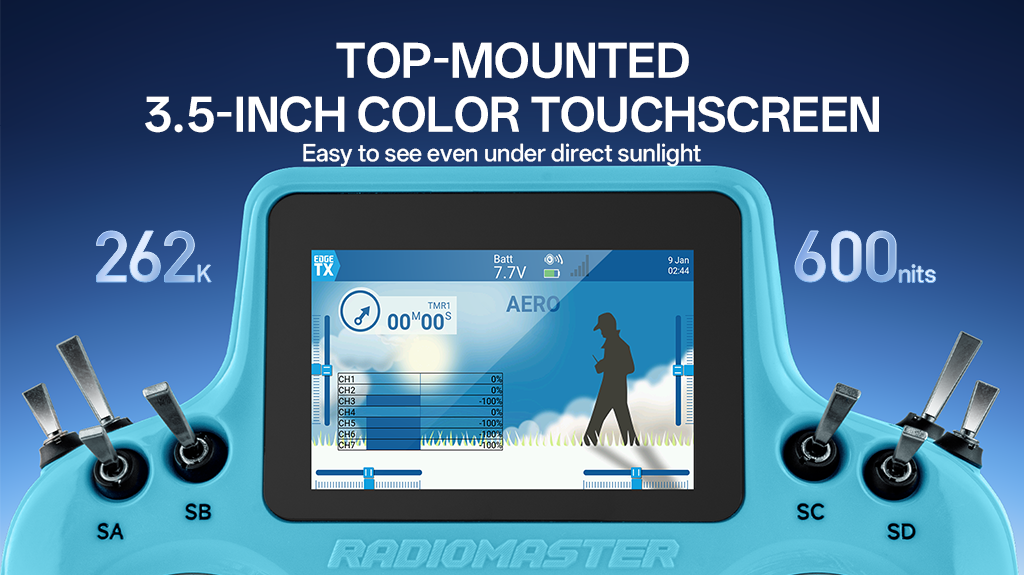
Example RadioMaster GX15 display. EdgeTX voice-alert and sound-pack paths differ by radio and firmware version.
Use the revision-matched documentation for the actual firmware and hardware. A troubleshooting guide cannot replace the manufacturer’s safety requirements.
Related FalconFly equipment: For a currently listed EdgeTX transmitter reference, see the RadioMaster TX16S MK3 (ELRS, Mode 2). A missing voice pack is normally a software/SD-card diagnosis rather than proof that a replacement radio is needed.