


Betaflight Configurator Cannot Connect by USB? Diagnose Ports and Drivers

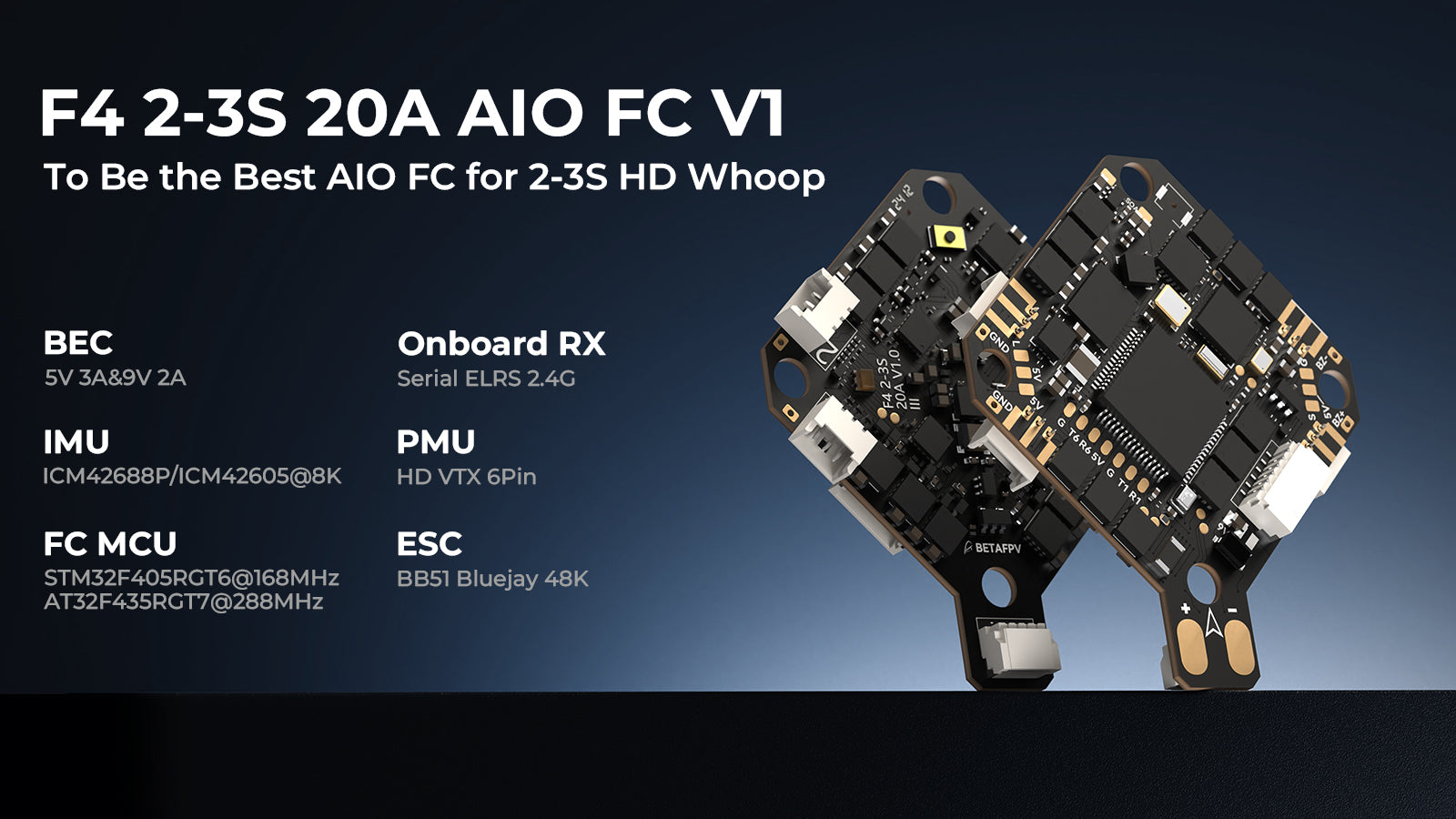
If Betaflight Configurator cannot see your flight controller, you cannot reliably change settings or flash firmware. Fortunately, many connection failures come from the computer-to-board path: a charge-only cable, a USB hub, an occupied serial port or a driver issue. The correct diagnostic order is from physical cable through operating-system device recognition to Betaflight settings. Flashing random firmware should be the last resort, not the first.
Connect to the correct device
The configurator communicates with the flight controller, not with a DJI Air Unit or RadioMaster transmitter. A drone can contain several USB ports belonging to different devices. Find the FC’s actual connector on the wiring diagram and avoid forcing fragile USB sockets. Remove propellers and disconnect unnecessary peripherals while preparing the bench; ensure the board is supported without strain.
A charging cable may have no data wires
A USB lead can power LEDs on the FC while carrying no communication signal. Test with a known-good data cable and a direct computer port if possible; bypass problematic hubs or adapters. Inspect the connector for dust, bent pins or intermittent movement. If another device can transfer data through the same cable, that is stronger evidence than seeing the board light up.
Check OS recognition before Betaflight
On Windows, inspect Device Manager for the expected serial device, warning icon or DFU device. On macOS, inspect whether a compatible USB/serial device appears; driver requirements differ by board and operating-system version. If the OS never recognizes a device, clicking Connect repeatedly cannot solve the underlying cable, port or hardware fault. Avoid installing unrelated unsigned drivers from random forum attachments.
DFU mode is not an ordinary COM connection
Bootloader or DFU mode is intended for firmware operations and can enumerate differently from the normal serial interface. A flight controller that appears only in DFU may require correct firmware/boot steps or driver diagnosis. Do not erase or flash the board until you have recorded its exact target and saved configuration where possible. A wrong target can prevent gyro detection or normal startup.
Resolve competing serial applications
A 3D-printer terminal, a serial monitor or another configurator can hold the port open. Close competing applications and retry after reconnecting. Note the exact error text, FC firmware and USB identification; these details are more useful than a vague ‘won’t connect’ report. If the computer recognizes the FC but Betaflight still fails, match the Configurator release to the installed firmware generation.
Symptom and decision table
| FC LED lights; no USB port | Test known-good data cable, port and OS recognition |
| Device appears as DFU | Confirm bootloader state and target |
| COM port exists; app refuses | Check competing applications and version |
| Disconnects when cable moves | Cable/connector physical fault likely |
Step-by-step field checklist
- Remove all propellers
- Identify the real FC USB connector
- Try a certified data-capable cable directly
- Inspect OS device enumeration and required drivers
- Preserve firmware target information before flashing
Frequently asked questions
Does a powered LED prove the USB cable supports data?
No. A charging-only cable can power the board without carrying USB data.
Should I install every driver package I find online?
No. Use the requirements of the specific board and trusted manufacturer or Betaflight documentation.
Further reading and relevant products
Technical reference: Official Betaflight connecting troubleshooting · Betaflight setup guide